
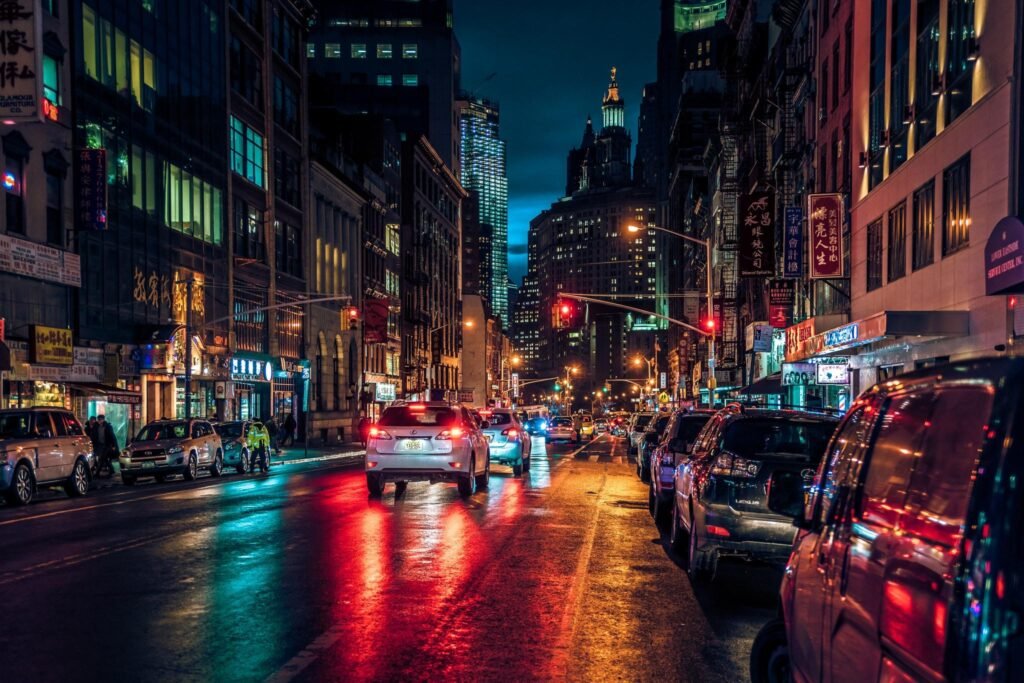
Night photography can produce some of the most atmospheric images. Illuminated buildings, glowing streetlights, colorful neon signs, and reflections on wet roads can transform an ordinary city scene into a memorable photograph.
However, night photographs are often challenging to edit. The darkest parts of the image may contain visible noise, while streetlights and bright signs may become overexposed. Increasing brightness too much can also remove the natural nighttime atmosphere.
Fortunately, Adobe Lightroom Mobile includes tools for balancing exposure, controlling highlights, refining colors, and reducing unwanted noise.
In this guide, you will learn how to edit night photos in Lightroom on Android and iPhone, with practical starting settings for street photography, night portraits, and cinematic city images.
Why Are Night Photos Difficult to Edit?
Night photographs often contain extreme differences between bright and dark areas.
For example, a photograph of a city street may include bright headlights, illuminated shop signs, and almost-black buildings.
Your phone or camera may struggle to preserve detail in every part of the scene.
Common challenges include:
- Very dark shadows.
- Overexposed streetlights.
- Grainy or noisy backgrounds.
- Unnatural yellow or green lighting.
- Motion blur from moving subjects.
- Loss of detail in dark clothing.
- Overly bright editing that removes the night atmosphere.
The goal is not to make a night photograph look like it was captured during the day.
Instead, a successful edit should preserve the nighttime mood while improving visibility and color balance.
What You Need Before Starting
Before editing, prepare:
- Adobe Lightroom Mobile on a compatible Android phone or iPhone.
- An original night photograph.
- Enough storage space for the edited image.
- A clear idea of your desired visual style.
- A copy of the original photograph for comparison.
For your first attempt, choose a photograph containing both visible dark areas and interesting light sources.
Night city photography with streetlights or building illumination is a useful example.
How to Edit Night Photos in Lightroom Mobile
Follow this step-by-step process to develop a balanced night photography look.
Step 1: Open Your Night Photograph
Launch Lightroom Mobile.
Import the night photograph or select it from your existing library.
Before making adjustments, look at the entire scene.
Identify the main subject, bright light sources, and dark areas that contain important details.
Step 2: Open the Light Panel
Select Edit → Light.
Lightroom’s Light panel includes controls for Exposure, Contrast, Highlights, Shadows, Whites, and Blacks.
These adjustments help control different parts of the image’s tonal range.
For technical details, read Adobe’s official Lightroom Light adjustments guide.
Step 3: Adjust Exposure Carefully
Exposure controls the overall brightness.
For a slightly dark night photograph, try increasing Exposure by a small amount.
However, if the city lights already look bright, you may not need to increase Exposure at all.
Use the main subject as your reference.
A night photograph should still contain natural darkness.
Step 4: Reduce Harsh Highlights
Move the Highlights slider to the left when bright streetlights or illuminated signs contain recoverable detail.
This can help control excessively bright areas.
Remember that completely clipped highlights may not contain detail that can be restored.
Step 5: Lift Important Shadows
Increase Shadows moderately if essential parts of the subject are difficult to see.
For example, this may reveal detail in buildings, clothing, or the foreground.
Avoid lifting every dark region.
Some areas should remain dark to preserve the atmosphere.
Step 6: Refine Whites and Blacks
Adjust Whites and Blacks carefully.
A slight reduction in Whites may help control intense light areas.
Lowering Blacks can add depth, but excessive reduction may hide important information.
Step 7: Correct the White Balance
Open the Color panel.
Night photographs often contain mixed lighting from headlights, streetlights, decorative lighting, and shop signs.
Adjust Temperature and Tint when the scene has an unwanted color cast.
Do not automatically remove all warm or cool colors; these may be part of the real lighting.
Step 8: Improve Individual Colors
Use Color Mix to adjust specific colors.
For example, you may want to reduce excessive yellow saturation while preserving red and blue neon signs.
Step 9: Reduce Digital Noise
Open Edit → Detail.
Apply Noise Reduction carefully.
Zoom in to check whether building edges, clothing textures, and other important details remain visible.
Step 10: Export the Photograph
Compare the edited image with the original.
If the result looks too bright, oversaturated, or excessively smooth, reduce the strongest adjustments.
Export your finished photograph at a suitable resolution.
Best Lightroom Settings for Night Photography
The following settings are suggested starting values for a moderately dark urban photograph with visible artificial lighting.
They are not universal, and every photograph may require different adjustments.
Light Settings
| Setting | Starting Value |
|---|---|
| Exposure | +0.20 |
| Contrast | +15 |
| Highlights | -45 |
| Shadows | +25 |
| Whites | -15 |
| Blacks | -18 |
These settings aim to preserve the bright lights while keeping the scene atmospheric.
If your photograph is already well exposed, leave Exposure near zero.
Color Settings
| Setting | Starting Value |
|---|---|
| Temperature | Adjust relative to original |
| Tint | Adjust relative to original |
| Vibrance | +12 |
| Saturation | -5 |
Effects Settings
| Setting | Starting Value |
|---|---|
| Texture | +4 |
| Clarity | +5 |
| Dehaze | +3 |
| Vignette | -8 |
Detail Settings
| Setting | Starting Value |
|---|---|
| Sharpening | 20 |
| Noise Reduction | 20 |
| Color Noise Reduction | 20 |
These detail settings are only examples. Adjust them after inspecting the image at high zoom.
Excessive noise reduction may remove useful texture, while strong sharpening may emphasize noise.
How to Reduce Noise in Night Photos
Noise is one of the most common problems in low-light photography.
It can appear as unwanted grain, colored spots, or irregular brightness patterns.
Night photographs frequently contain noise because cameras may use higher ISO sensitivity or other processing techniques to capture dark scenes.
Step 1: Open the Detail Panel
Select Edit → Detail.
Step 2: Find Noise Reduction
Locate the Noise controls.
Depending on the application version, luminance and color noise may have separate adjustment sections.
Step 3: Apply Moderate Noise Reduction
Increase the adjustment gradually.
Pay attention to dark walls, skies, shadows, and skin.
Step 4: Preserve Important Details
Avoid making textures completely smooth.
Buildings, hair, and clothing should remain believable.
Step 5: Adjust Color Noise Reduction
If you see unwanted colored speckles, use the color noise reduction controls.
Step 6: Review at 100% Zoom
Inspect the image closely before increasing the adjustment further.
Adobe explains the available options in its official Lightroom Detail guide.
How to Edit Neon Night Photography
Neon lighting can give night photographs a strong visual identity.
However, the colors may become overly saturated during editing.
A useful approach is to enhance the existing colors without turning them unnatural.
Blue Neon Lights
Use Color Mix to adjust the blue channel.
You may slightly increase Blue Saturation if the original color is too muted.
Be careful not to turn blue signs into flat, overly saturated shapes.
Red and Pink Neon Lights
Review the Red and Magenta channels.
Small saturation changes may help preserve colorful signs and reflections.
Yellow Streetlights
Some streetlights produce strong yellow or orange illumination.
If the entire photograph looks too warm, consider reducing Yellow Saturation or adjusting Temperature.
Wet Road Reflections
Reflections can contribute depth and atmosphere.
Preserve natural variations in brightness and color rather than making every reflection equally intense.
How to Make Night City Photos Look Cinematic
Cinematic night editing often uses deliberate color contrast, detailed shadows, and controlled highlights.
A simple approach is:
- Maintain a dark nighttime foundation.
- Keep the main subject visible.
- Reduce excessively bright highlights.
- Use moderate contrast.
- Preserve the original colored light sources.
- Apply subtle color grading.
- Avoid heavy artificial glow.
A cinematic look does not require extreme blue shadows or orange highlights.
Natural-looking light and carefully controlled contrast are often more effective.
How to Edit Night Portraits in Lightroom
Night portraits require special attention because the person’s face should remain recognizable.
Preserve Facial Details
If the face is too dark, raise Shadows or use selective editing where supported.
Control Background Lights
Reduce Highlights if bright signs or lamps distract from the person.
Maintain Natural Skin Texture
Avoid heavy noise reduction that removes realistic facial detail.
Correct Unwanted Color Casts
Colored streetlights may affect skin tones.
Adjust white balance or use selective color correction carefully.
Keep Background Separation
A subtle difference in brightness between the subject and background can improve the composition.
Avoid changing the background into an unrealistic lighting environment.
Three Night Photography Styles to Try
1. Natural City Night
This style preserves realistic city colors and lighting.
Try moderate shadow recovery, controlled highlights, and restrained saturation.
Best for: Travel photographs, architecture, and everyday urban scenes.
2. Moody Cinematic Night
This style uses deeper shadows and slightly cooler tonal balance.
Keep the subject visible and avoid crushing black details.
Best for: Street photography, creative portraits, and atmospheric city images.
3. Colorful Neon Night
This style emphasizes existing blue, red, pink, and purple lighting.
Use Color Mix to refine individual colors without making the entire photograph excessively saturated.
Best for: Neon streets, nightlife photography, and illuminated architecture.
How to Use Color Grading for Night Photos
Color Grading provides separate adjustments for shadows, midtones, and highlights.
If you want a subtle cinematic night look, experiment with these example settings:
| Tonal Range | Hue | Saturation |
|---|---|---|
| Shadows | 215 | 7 |
| Midtones | 220 | 3 |
| Highlights | 35 | 6 |
Start with moderate Blending and a neutral Balance setting.
These values create slightly cool shadows and restrained warm highlights.
However, you should reduce or remove the effect if it conflicts with the photograph’s original light sources.
The goal is believable atmosphere, not artificial color.
How to Use Effects Without Overediting
The Lightroom Effects panel includes Texture, Clarity, Dehaze, Vignette, and Grain controls.
Each serves a different purpose.
Texture
A small increase may help emphasize architectural surfaces.
Clarity
Moderate Clarity can add edge contrast, but high values may create halos around bright lights.
Dehaze
A small adjustment may improve atmospheric contrast.
Strong Dehaze can make night photography overly dark and saturated.
Vignette
A subtle vignette can guide attention toward the main subject.
Avoid creating a heavy black border around the image.
Grain
A small amount of artistic grain may suit certain film-inspired looks.
However, avoid adding excessive grain to footage that already contains significant sensor noise.
For official guidance, read Adobe’s Lightroom Effects documentation.
How to Save Your Night Editing Settings as a Preset
Once you develop a night editing style you like, you can save the reusable adjustments as a custom preset.
Step 1: Finish Your Edit
Adjust Light, Color, Effects, and other settings.
Step 2: Open Presets
Navigate to the Presets panel.
Step 3: Choose Create Preset
Select the custom preset creation option.
Step 4: Enter a Name
For example:
Cinematic Urban Night
Step 5: Choose Settings to Save
Consider excluding Exposure and white balance if your photographs have very different lighting.
Step 6: Save the Preset
Place it in User Presets or a suitable custom group.
Step 7: Test on Another Image
Apply the preset to another night photograph.
Refine the result as necessary.
For additional tutorials, browse the Presets category.
Common Night Photography Editing Mistakes
Making Night Photos Too Bright
Increasing overall exposure too much removes the atmosphere.
Fix: Brighten only the areas that need more detail.
Excessive Noise Reduction
Strong smoothing can destroy fine textures.
Fix: Use moderate noise reduction and review the image closely.
Over-Sharpening
Aggressive sharpening may exaggerate noise and create light halos.
Fix: Apply sharpening carefully after adjusting noise.
Oversaturated Neon Lights
Strong colors can become unnatural and lose fine detail.
Fix: Adjust individual colors using Color Mix.
Unnatural Skin Tones
Mixed artificial lights may create unwanted color casts.
Fix: Correct color carefully without removing the atmosphere.
Crushed Blacks
Excessively deep black tones can hide buildings, clothing, and other important features.
Fix: Restore some black and shadow detail.
Overusing Dehaze
Heavy Dehaze can create unnatural contrast and color.
Fix: Apply a small amount only when it helps the photograph.
How to Take Better Night Photos Before Editing
Good capture technique makes the editing process easier.
Keep the Camera Stable
Use a tripod or steady surface when possible.
Avoid Unnecessary Digital Zoom
Digital zoom can make image noise and camera shake more noticeable.
Use Available Light Carefully
Look for illuminated areas that can naturally light the subject.
Avoid Extreme Exposure Adjustments
A slightly brighter original photograph may provide more useful detail than a severely underexposed image.
However, do not overexpose important light sources.
Capture RAW When Appropriate
If your device supports RAW capture, it may offer more flexibility during editing.
Take Several Photographs
Small changes in camera angle or exposure can produce different results.
Choose the strongest original image before editing.
Lightroom Night Presets vs. Manual Editing
Presets can help apply consistent color and contrast settings across multiple photographs.
However, night photography varies significantly depending on the available lighting.
A photograph illuminated by blue neon signs requires different corrections from one captured under yellow streetlights.
A preset should be treated as a starting point.
Manual adjustments remain important for exposure, white balance, and noise reduction.
For more preset techniques, explore the Presets category.
Best Export Settings for Night Photography
Choose export settings appropriate for the final use.
| Purpose | Suggested Size |
|---|---|
| Blog featured image | 1200 × 675 px |
| Instagram portrait | 1080 × 1350 px |
| Instagram square | 1080 × 1080 px |
| Vertical story | 1080 × 1920 px |
| Website landscape image | 1600 × 900 px |
These are suggested dimensions rather than universal requirements.
Night photographs may contain gradients and shadow details that can be affected by heavy compression.
Keep a high-quality copy of your finished image and avoid repeatedly saving compressed versions.
Frequently Asked Questions
How do I edit night photos in Lightroom Mobile?
Open the photograph, adjust Exposure, Highlights and Shadows, correct white balance, reduce noise in the Detail panel, and refine individual colors if necessary.
What are the best Lightroom settings for night photography?
There is no universal setting. Moderate highlight reduction, controlled shadows, suitable exposure, and careful noise reduction are useful starting points.
How do I reduce grain in night photos?
Use the Noise Reduction controls in Lightroom’s Detail panel and review the result at high zoom.
Should I increase Exposure in night photographs?
Only when necessary. Over-brightening can remove the natural nighttime atmosphere and reveal more noise.
How do I edit neon lights in Lightroom?
Use Color Mix to control individual colors and adjust Highlights to preserve detail where possible.
Can Lightroom make blurry night photos sharp?
Sharpening can improve apparent edge definition, but it cannot reliably restore detail lost through severe motion blur.
Can I create a night photography preset?
Yes. Supported versions of Lightroom Mobile allow you to save editing adjustments as a custom preset.
Does Lightroom work for night photos on Android?
Yes. Compatible Android versions provide Light, Color, Effects, and Detail adjustments.
Can I edit night photographs on an iPhone?
Yes. Lightroom Mobile for iPhone includes similar adjustment tools.
Why does my photo look noisy after increasing Shadows?
Brightening dark areas can reveal noise captured in the original photograph.
Final Thoughts
Learning how to edit night photos in Lightroom Mobile can help you improve urban photography, illuminated architecture, neon street scenes, and nighttime portraits.
The most important technique is balancing light and darkness.
Use Exposure and Shadows to reveal necessary details, Highlights to control bright areas, Color Mix to refine existing colors, and Noise Reduction to improve distracting grain.
Avoid making every photograph extremely bright or overly saturated.
A successful night edit preserves the atmosphere while improving clarity and visual balance.
For more photo editing tutorials, Lightroom techniques, and creative preset ideas, explore the Presets category on Daily Inspiration.
You can also browse the AI Prompts category for additional creative photography techniques.