
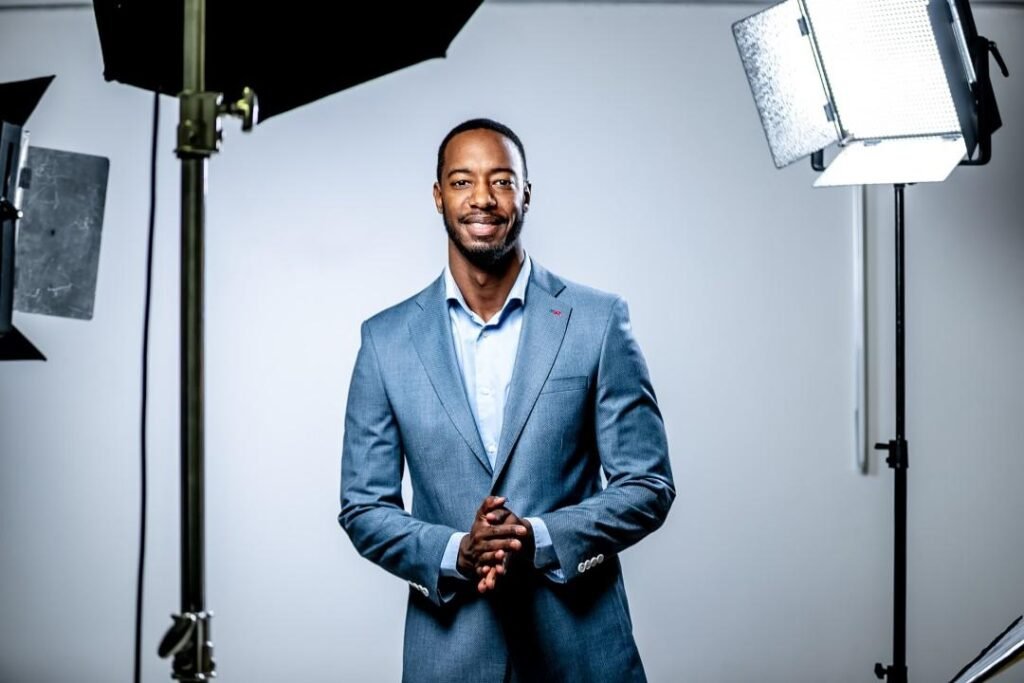
A professional headshot can help create a polished first impression on a business website, professional profile, personal portfolio, or job application. The lighting, background, expression, and framing all contribute to how the photograph appears.
Not everyone has access to a professional photography studio. AI-assisted photo editing provides another way to explore clean backgrounds, improved lighting, and different portrait styles using an existing photograph.
However, generating a professional-looking headshot is not just about adding a suit or replacing the background. The most convincing results preserve the person’s recognizable appearance, natural skin texture, facial proportions, and realistic lighting.
In this guide, you will discover 12 AI professional headshot prompts designed for different professional styles. You will also learn how to choose a suitable source photo, write better editing instructions, and avoid common AI portrait mistakes.
What Are AI Professional Headshot Prompts?
AI professional headshot prompts are written instructions used to create or edit portrait photographs with compatible AI image tools.
These prompts describe the desired appearance of the final image, including:
- Background color and environment.
- Studio or natural lighting.
- Camera framing and composition.
- Clothing and overall presentation.
- Facial expression and posture.
- Skin texture and photographic realism.
- Details that should remain unchanged.
For example, a simple instruction might say:
“Make this photograph look professional.”
A more useful instruction would be:
“Edit the uploaded portrait into a realistic professional headshot with a clean light-grey background, soft studio lighting, natural skin texture, and balanced composition. Preserve the person’s recognizable face, hairstyle, age appearance, and facial proportions.”
The second example provides clearer directions while identifying important features that should not be changed.
How to Use AI Headshot Prompts
The general workflow is similar across compatible AI photo editing applications.
- Choose a clear portrait that you own or have permission to edit.
- Upload the photograph to an AI editor that supports image editing.
- Copy one of the prompts below.
- Adjust the clothing, lighting, or background instructions to suit your needs.
- Generate the edited image.
- Compare the result with the original photograph.
- Correct any unwanted changes to facial features or clothing.
- Export the finished photograph at a suitable resolution.
AI image editing capabilities vary by platform. Some tools support selective edits or reference images, while others may regenerate larger parts of the photograph.
For more guidance on descriptive prompting, read Google’s official image prompting tips.
1. Classic Corporate Headshot Prompt
A classic corporate portrait uses simple lighting and a neutral background.
Copy-paste prompt:
“Transform the uploaded portrait into a realistic corporate headshot. Preserve the subject’s recognizable facial features, age appearance, hairstyle, expression, and natural proportions. Use a clean neutral-grey studio background, soft frontal lighting, subtle shadows, and balanced skin tones. Keep the composition professional with shoulders visible and the face clearly in focus. Maintain authentic skin texture and natural photographic detail. Do not alter facial structure, create artificial skin smoothing, or add unnecessary accessories.”
Best for: Corporate websites, company profiles, and professional directories.
Editing tip: Neutral backgrounds generally make it easier to maintain a clean and consistent appearance across a team.
2. LinkedIn Professional Portrait Prompt
A LinkedIn-style photograph should appear approachable, clear, and professional.
Copy-paste prompt:
“Edit this photograph into a realistic professional networking headshot suitable for a LinkedIn profile. Preserve the person’s recognizable identity, facial features, hairstyle, and natural expression. Use soft daylight-inspired studio lighting, a simple light-grey background, realistic skin texture, and sharp but natural camera detail. Frame the image around the head and shoulders with comfortable space above the head. Keep the result authentic and avoid dramatic filters, excessive retouching, or facial modifications.”
Best for: LinkedIn profiles and professional networking.
Editing tip: A friendly natural expression often works better than an exaggerated or artificially generated smile.
3. Professional CV Photo Prompt
Some job applications or regional CV formats include a professional photograph.
Copy-paste prompt:
“Create a clean, realistic professional CV photograph from the uploaded image. Preserve the subject’s exact recognizable face, hairstyle, natural proportions, and age appearance. Use a plain light-neutral background, even diffused lighting, natural skin tones, and a centered head-and-shoulders composition. Keep the image sharp, simple, and photographic. Do not change facial features, invent accessories, or add excessive beauty retouching.”
Best for: CV formats where a photograph is appropriate.
Editing tip: Check the application requirements before including a photo. Some employers and regions discourage or do not request photographs on CVs.
4. Modern Business Casual Headshot Prompt
A business casual portrait offers a relaxed alternative to a traditional corporate photograph.
Copy-paste prompt:
“Edit the uploaded portrait into a realistic modern business-casual headshot. Preserve the subject’s recognizable face, expression, hairstyle, and natural body proportions. Use soft natural window lighting and a clean warm-neutral background. Keep the existing clothing unless a change is explicitly requested. Maintain realistic fabric textures, balanced colors, natural skin detail, and professional head-and-shoulders framing. Avoid artificial facial reconstruction, excessive blur, and overly dramatic color grading.”
Best for: Consultants, freelancers, startup teams, and personal websites.
Editing tip: Keeping your original clothing often helps the result look more authentic.
5. Dark Grey Executive Portrait Prompt
Dark backgrounds can create a refined business portrait when the lighting is controlled.
Copy-paste prompt:
“Transform the uploaded photograph into a realistic executive studio portrait with a deep charcoal-grey background. Preserve the person’s recognizable facial appearance, hairstyle, expression, clothing details, and natural proportions. Use a soft directional key light from one side with subtle fill light to maintain facial detail. Keep realistic shadows, accurate skin tones, and sharp professional camera quality. Avoid harsh black areas, artificial skin smoothing, or unnecessary changes to the person’s appearance.”
Best for: Executive profiles and leadership team pages.
Editing tip: Make sure dark clothing remains visible against the background.
6. Clean White Background Headshot Prompt
White backgrounds can be useful when a simple, distraction-free portrait is needed.
Copy-paste prompt:
“Edit the uploaded portrait into a realistic studio headshot against a clean white background. Preserve the subject’s identity, original facial proportions, hairstyle, natural expression, and clothing. Use evenly diffused professional lighting with subtle natural shadows and accurate skin tones. Keep the subject clearly separated from the white background and maintain realistic hair edges. Avoid overexposed facial highlights, artificial skin texture, and distorted clothing.”
Best for: Professional directories, profile photos, and simple portfolio layouts.
Editing tip: Avoid removing all edge shadows, as the result may look like an unnatural cutout.
7. Natural Window Light Headshot Prompt
Natural window light can create a soft, approachable appearance.
Copy-paste prompt:
“Create a realistic professional portrait from the uploaded image using soft natural window lighting. Preserve the subject’s recognizable face, hairstyle, expression, and clothing. Place the person against a simple neutral indoor background with soft daylight illuminating one side of the face. Maintain gentle shadow transitions, natural skin texture, realistic camera depth, and a clean head-and-shoulders composition. Avoid exaggerated sun rays, artificial glow, and facial changes.”
Best for: Creative professionals, authors, and personal branding.
Editing tip: Keep the strongest light consistent with the apparent window position.
8. Creative Professional Headshot Prompt
Creative professionals may prefer a portrait that feels polished without looking overly formal.
Copy-paste prompt:
“Edit this portrait into a realistic creative-professional headshot. Preserve the subject’s recognizable facial appearance, hairstyle, outfit, and natural proportions. Use a simple muted-blue or warm-grey background, gentle directional studio light, balanced contrast, and natural skin details. Maintain a relaxed but confident expression and professional camera framing. Keep the style contemporary and photographic without excessive color effects or unrealistic facial alterations.”
Best for: Designers, photographers, writers, and creative portfolios.
Editing tip: Choose background colors that complement the original outfit.
9. Professional Outdoor Headshot Prompt
Outdoor portraits can look professional when the background is simple and the light is soft.
Copy-paste prompt:
“Transform the uploaded image into a realistic professional outdoor headshot. Preserve the subject’s recognizable face, age appearance, hairstyle, outfit, and expression. Use a softly blurred natural outdoor background with gentle daylight, balanced skin tones, realistic shadow direction, and subtle depth of field. Keep the subject sharply focused with natural skin texture and professional head-and-shoulders framing. Avoid unrealistic foliage, exaggerated background blur, or changes to facial features.”
Best for: Consultants, educators, and lifestyle-focused professional profiles.
Editing tip: Avoid placing visually distracting objects directly behind the subject’s head.
10. Minimal Studio Portrait Prompt
Minimal studio portraits use controlled lighting and simple compositions.
Copy-paste prompt:
“Create a realistic minimal studio portrait using the uploaded photograph as the primary reference. Preserve the subject’s recognizable facial features, hairstyle, clothing, expression, and proportions. Use a smooth beige-grey background, soft diffused studio lighting, gentle natural shadows, and restrained neutral color grading. Keep the image clean with realistic skin texture and sharp photographic detail. Do not introduce additional objects, exaggerated retouching, or artificial facial changes.”
Best for: Personal websites, portfolios, and editorial profiles.
Editing tip: Keep the background slightly different in tone from the clothing.
11. Professional Headshot With Office Background Prompt
A softly blurred office can provide context without distracting from the person.
Copy-paste prompt:
“Edit the uploaded portrait into a realistic professional headshot with a modern office background. Preserve the subject’s recognizable face, hairstyle, clothing, natural proportions, and expression. Use a softly blurred office environment with realistic windows, neutral furniture, and consistent indoor daylight. Maintain natural facial lighting, believable perspective, sharp subject focus, and authentic skin detail. Avoid distorted architecture, artificial reflections, and changes to the person’s appearance.”
Best for: Company team profiles, consultants, and business websites.
Editing tip: The office background should remain secondary to the person.
12. Premium Editorial Headshot Prompt
An editorial headshot can combine professional presentation with a slightly more cinematic atmosphere.
Copy-paste prompt:
“Transform the uploaded photograph into a realistic premium editorial headshot. Preserve the subject’s recognizable identity, facial structure, hairstyle, expression, clothing, and natural proportions. Use controlled soft studio lighting, a sophisticated neutral background, gentle tonal contrast, and natural photographic texture. Maintain detailed skin and fabric surfaces with a balanced head-and-shoulders composition. Keep the result authentic and refined. Avoid plastic-looking skin, excessive sharpening, dramatic artificial effects, or facial reconstruction.”
Best for: Magazine-style portfolios, speakers, and professional personal branding.
Editing tip: Subtle lighting and composition usually create a stronger result than excessive effects.
How to Write Better AI Professional Headshot Prompts
A good headshot prompt should explain the creative changes while preserving the person’s important visual features.
Use this structure:
Original Subject + Preservation Instructions + Background + Lighting + Framing + Realism Requirements
For example:
“Edit this portrait into a realistic professional headshot. Preserve my recognizable face and hairstyle. Use a light-grey studio background, soft frontal lighting, natural skin texture, and centered shoulders-up framing.”
This helps the editor understand the desired result without introducing unnecessary changes.
Describe the Lighting
Choose soft studio light, natural window light, or controlled side lighting.
Avoid vague requests for dramatic effects unless they suit the intended professional style.
Specify the Background
Simple white, beige, grey, and softly blurred office backgrounds are practical choices.
Preserve Important Facial Details
Ask the model to maintain the original person’s recognizable appearance, including facial proportions, hairstyle, and age appearance.
However, written instructions alone cannot guarantee that every facial feature remains identical.
Avoid Unnecessary Clothing Changes
If your original outfit is suitable, preserving it may produce a more believable result than replacing it.
Refine the Result Gradually
If the first image changes the face, try selective editing or a more controlled image reference workflow instead of repeatedly regenerating the entire photograph.
For more information, Adobe explains how targeted edits can preserve unaffected regions in its Photoshop selection-based generative editing guide.
How to Choose the Best Photo for AI Headshot Editing
A suitable source photograph can significantly improve the editing process.
Use a Clear Facial Photograph
Avoid heavily blurred or extremely low-resolution images.
Choose Natural Expressions
A relaxed expression can help create a realistic professional portrait.
Avoid Heavy Filters
Strong beauty filters may remove genuine facial texture and make identity preservation more difficult.
Check Lighting Quality
Even lighting generally provides a better starting point than an image with large areas of missing detail.
Use a Suitable Camera Angle
Eye-level photographs are often effective for conventional professional headshots.
Keep the Subject Visible
Avoid source photographs where the face is hidden by hair, accessories, or strong shadows.
AI Headshot Backgrounds: Which One Should You Choose?
| Background | Visual Effect | Suitable Use |
|---|---|---|
| White | Clean and simple | CVs, profile directories |
| Light grey | Neutral and professional | LinkedIn, team profiles |
| Beige | Warm and approachable | Personal branding |
| Charcoal | Refined and dramatic | Executive portraits |
| Soft office | Contextual and professional | Business websites |
| Blurred outdoors | Natural and relaxed | Creative professionals |
| Muted blue | Contemporary | Portfolio headshots |
The best background depends on your intended platform and the original photograph.
For more background ideas, explore our Backgrounds category.
How to Make AI Headshots Look Realistic
Realistic results depend on details that can be easy to overlook.
Preserve Natural Skin Texture
Excessive smoothing can make the subject look artificial.
Request visible but balanced skin texture.
Keep Facial Proportions Accurate
Check the shape of the eyes, nose, jaw, mouth, and ears against the original photograph.
Use Believable Lighting
The direction of shadows should match the light source.
Review Hair Edges
Look for strange outlines, missing strands, or inconsistent background blending.
Check Clothing
AI editing tools may distort collars, buttons, seams, or fabric folds.
Avoid Over-Sharpening
Excessive sharpness can create unnatural skin texture and visible halos.
Compare With the Original Photo
If the result no longer looks like the same person, it may be unsuitable for identity-related professional use.
Common AI Professional Headshot Mistakes
Changing the Person’s Face
Some AI models may alter facial structure during editing.
Use selective editing tools where possible and review the generated results carefully.
Making Skin Look Plastic
Over-smoothed skin can make a genuine portrait look like a digital illustration.
Reduce beauty effects and preserve natural details.
Unnatural Business Clothing
Generated suits and shirts can contain distorted collars, extra buttons, or unrealistic seams.
Inspect clothing carefully.
Incorrect Lighting Direction
The face and background should appear to belong to the same lighting environment.
Excessive Background Blur
Strong artificial blur can make the portrait look pasted onto the scene.
Use realistic depth of field.
Overly Dramatic Effects
Heavy filters, neon colors, and extreme contrast may not suit a conventional professional headshot.
Using a Misleading Portrait
For professional profiles, avoid presenting an AI-modified portrait that materially misrepresents the person’s identity or appearance.
AI Headshots vs. Traditional Studio Photography
Both approaches have different strengths.
Traditional studio photography captures a real person using controlled lighting, camera equipment, and a physical environment.
It provides direct control over pose, clothing, expression, and authentic photographic detail.
AI-assisted headshot editing can modify backgrounds, lighting, and some visual elements from an existing photograph.
However, AI tools may introduce unintended changes to faces, clothing, and other details.
For professional use, an accurate original portrait with limited editing is often preferable to an entirely reconstructed image.
Can You Use AI Headshots for LinkedIn or Job Applications?
A professionally edited photograph can be suitable for some online profiles, but it should remain a recognizable and truthful representation of the person.
Before using AI-generated or heavily modified portraits:
- Review the intended platform’s current rules.
- Confirm that the photo still resembles the real person.
- Avoid changing important identity-related features.
- Check any employer or application requirements.
- Use a genuine photograph where an unaltered image is required.
Some applications may not need a portrait at all.
Professional presentation should not come at the expense of accuracy.
Frequently Asked Questions
What is an AI professional headshot prompt?
It is a written instruction used with a compatible AI image tool to create or edit a professional portrait with specific lighting, background, and framing.
Can AI turn a selfie into a professional headshot?
Some tools can improve backgrounds and lighting from a selfie. Results depend on image quality and the editor’s capabilities.
Can AI preserve my original face exactly?
Not always. You can request facial preservation, but even detailed prompts may not prevent unintended identity changes.
What is the best background for a business headshot?
Light-grey, white, beige, and neutral office backgrounds are common practical choices.
Can I use these prompts on Android or iPhone?
Yes, if the chosen AI photo editing application supports uploaded-image editing on your device.
Which lighting is best for a realistic headshot?
Soft frontal or slightly directional lighting often provides a clean appearance without hiding important facial features.
Can I change clothing with an AI headshot prompt?
Some AI tools support clothing edits, but the results may contain inaccurate fabric details or altered body proportions. Review the output carefully.
Why does my AI headshot look fake?
Common causes include over-smoothed skin, facial changes, unrealistic lighting, distorted clothing, or unnatural background blur.
Are AI headshots suitable for CVs?
It depends on the application requirements and local professional conventions. Use a truthful photograph and avoid substantial identity changes.
Do these prompts work in every AI editor?
No. Editing capabilities and prompt interpretation differ across AI models and platforms.
Final Thoughts
AI professional headshot prompts can help you explore cleaner backgrounds, softer lighting, and different portrait styles without rebuilding a studio setup.
However, the most important element of a good professional headshot is authenticity.
A convincing portrait should preserve the person’s recognizable appearance while using lighting, framing, and background adjustments to improve presentation.
Start with a clear original photograph, choose one of the 12 prompts above, and review the result carefully.
For more creative editing instructions, explore the AI Prompts category on Daily Inspiration.
You can also visit the Backgrounds category for more portrait background ideas.