
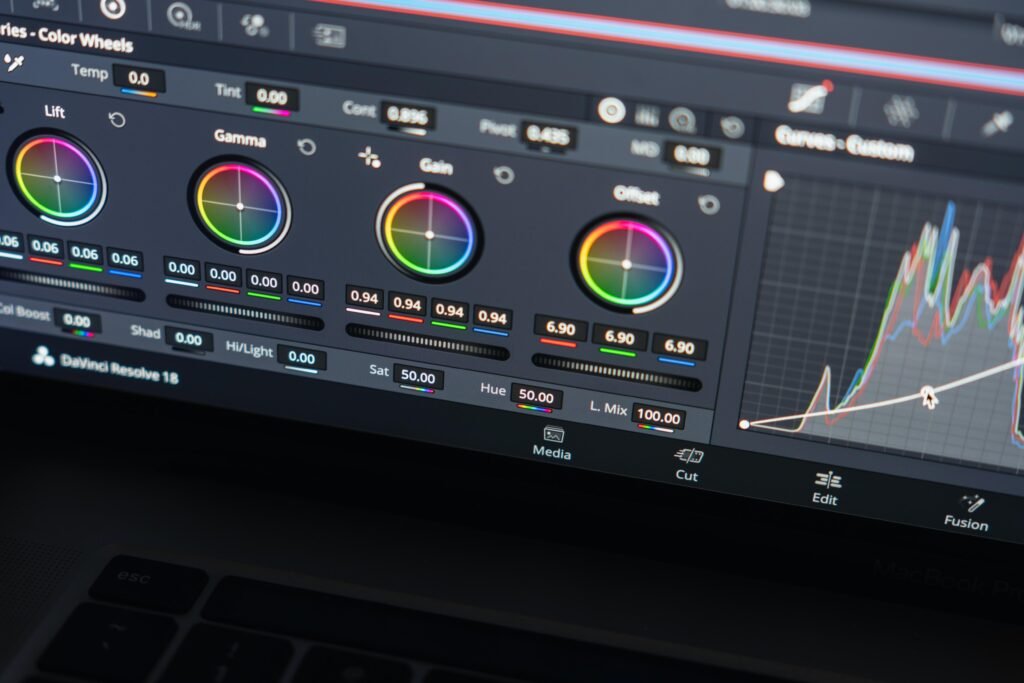
Cinematic color grading can make an ordinary video look more polished, atmospheric, and visually consistent. By adjusting light, contrast, saturation, and individual colors, you can create a particular mood without changing the original footage.
Whether you are editing travel videos, Instagram Reels, lifestyle clips, or short films, understanding color grading is an important creative skill.
VN Video Editor provides filters and adjustment tools that allow creators to experiment with different color styles directly on compatible mobile devices. You can also import supported LUT files to apply an existing color treatment.
In this guide, you will learn how to do cinematic color grading in VN Video Editor, use practical starting settings, create different cinematic looks, and avoid common color editing mistakes.
What Is Cinematic Color Grading?
Cinematic color grading is the process of creatively adjusting the colors and tones of video footage to establish a particular visual style.
For example, a warm color grade may create a welcoming atmosphere, while cooler shadows and reduced saturation can give a scene a more dramatic appearance.
Color grading can involve several adjustments:
- Exposure and brightness.
- Contrast between light and dark areas.
- Color temperature.
- Overall saturation.
- Individual color ranges using HSL.
- Vignette and other finishing adjustments.
- Preset filters or LUTs.
The goal is not simply to make footage darker or more colorful.
Good cinematic grading helps the viewer experience a consistent mood while keeping the scene visually believable.
Color Correction vs. Color Grading
Color correction and color grading are related, but they serve different purposes.
Color correction focuses on fixing technical or visual problems, such as incorrect exposure, unnatural white balance, or inconsistent colors.
Color grading focuses on giving the corrected footage a creative visual identity.
For example, if an outdoor video has a strong blue color cast, you may first correct its white balance.
Afterward, you could apply a subtle warm cinematic style.
The most effective workflow usually begins with basic correction before creative grading.
What You Need Before Starting
To follow this tutorial, prepare:
- VN Video Editor installed on your device.
- A video recorded with reasonably clear detail.
- Enough device storage for editing and exporting.
- A basic idea of the desired visual style.
- Two or three test clips recorded under different lighting conditions.
A well-exposed video is generally easier to grade than footage with severely overexposed highlights or missing shadow details.
For your first project, choose a short daylight clip with natural colors.
How to Do Cinematic Color Grading in VN Video Editor
VN provides a combination of preset filters and individual adjustment controls.
The following workflow follows the main editing tools documented by VN.
Step 1: Open VN Video Editor
Launch VN on your Android phone or iPhone.
Create a new project and import the footage you want to edit.
Place the video on the main timeline.
Step 2: Select Your Video Clip
Tap the clip you want to grade.
Look for the Filter option in the editing toolbar.
Open it to access VN’s filter and adjustment controls.
Step 3: Open the Adjust Controls
Choose Adjust to access individual image controls.
Depending on the app version, you may find settings such as Exposure, Contrast, Brightness, Saturation, Vibrance, Temperature, HSL, and Vignette.
These allow you to modify the video without relying entirely on ready-made filters.
For an explanation of the supported controls, see the official VN Image & Clip Adjustment guide.
Step 4: Correct the Exposure
Begin by checking whether the video is too bright or too dark.
Use Exposure to make an appropriate correction.
Avoid increasing brightness until important highlights become completely white.
Step 5: Adjust Contrast
Contrast influences the separation between brighter and darker areas.
A moderate increase can give footage more depth.
However, excessive contrast can hide important details in dark clothing, faces, and backgrounds.
Step 6: Control Saturation
Saturation affects the intensity of colors.
For a restrained cinematic look, try reducing overly vivid colors slightly.
Do not automatically remove too much saturation, as this can make skin tones and natural environments appear lifeless.
Step 7: Adjust Temperature
Temperature makes footage look warmer or cooler.
A warmer appearance may suit sunset scenes and lifestyle videos.
A cooler appearance may work for cloudy landscapes or certain dramatic urban scenes.
Choose a temperature that complements the original lighting.
Step 8: Refine Individual Colors With HSL
Open HSL if available in your editing controls.
HSL stands for Hue, Saturation, and Lightness.
It allows you to modify specific color ranges instead of affecting every color equally.
Step 9: Add a Subtle Vignette
A gentle vignette can draw attention toward the center of the frame.
Use this effect sparingly.
Step 10: Preview and Export
Watch the graded footage from beginning to end.
Check skin tones, highlights, shadow detail, and color consistency.
Once satisfied, export the video using suitable settings.
Cinematic VN Color Grading Settings: Quick Reference
The following values are suggested starting points for experimenting with a restrained cinematic look.
Important: These are creative example values, not an official VN preset. The numeric scale and availability of controls may vary by version. Treat each value as an approximate adjustment rather than a guaranteed identical result.
| Adjustment | Suggested Starting Value |
|---|---|
| Exposure | 0 |
| Contrast | +12 |
| Brightness | -3 |
| Saturation | -8 |
| Vibrance | +4 |
| Temperature | -4 |
| Vignette | +8, toward edge darkening |
The purpose of these adjustments is to create moderate contrast and slightly restrained colors.
If your source footage is already dark, leave Brightness near its original value.
If the footage contains natural warm sunlight, you may not need to reduce Temperature.
How to Use HSL for Cinematic Video Colors
HSL can be useful when you want to control particular colors without changing the entire image.
Hue
Hue changes the appearance of a selected color range.
For example, adjusting green Hue can move foliage toward a more yellow or cyan appearance, depending on the available control direction.
Saturation
Saturation controls the intensity of the selected color.
Reducing green saturation can make a busy outdoor scene look more restrained.
Lightness
Lightness changes how bright or dark the selected color appears.
Lowering blue Lightness may make a sky look deeper, while increasing orange Lightness can affect the appearance of some skin tones.
Example HSL Adjustments
The values below are experimental starting suggestions for controls using a similar positive/negative scale.
| Color | Hue | Saturation | Lightness |
|---|---|---|---|
| Orange | 0 | 0 | +4 |
| Yellow | -8 | -12 | -5 |
| Green | +8 | -18 | -8 |
| Blue | -5 | -10 | -6 |
Start with small changes and examine the result.
Not every clip contains all these colors, so some adjustments may have little visible effect.
Three Cinematic Looks You Can Create in VN
Different types of footage need different treatments.
Here are three useful looks to experiment with.
Look 1: Warm Cinematic Travel
This style is suitable for outdoor travel clips and lifestyle videos.
Try:
- Gentle contrast.
- Slightly warmer temperature.
- Moderate saturation.
- Natural orange and yellow tones.
- Minimal vignette.
Best for: Travel vlogs, outdoor adventures, sunsets, and lifestyle content.
Editing tip: Avoid pushing skin tones too far toward orange.
Look 2: Moody Urban Cinematic
A moody urban grade uses cooler colors and more controlled saturation.
Try:
- Moderate contrast.
- Slightly cooler temperature.
- Reduced green and yellow saturation.
- Carefully controlled dark areas.
- Subtle vignette.
Best for: City streets, fashion videos, architecture, and cloudy-day footage.
Editing tip: Keep enough brightness on faces and important objects.
Look 3: Clean Natural Film Look
This style is useful when you want a polished image without dramatic effects.
Try:
- Balanced exposure.
- Gentle contrast.
- Neutral white balance.
- Natural saturation.
- Very limited vignette.
Best for: Educational videos, talking-head clips, food videos, and professional content.
Editing tip: A consistent natural appearance can be more effective than heavy cinematic filters.
How to Use Filters in VN Video Editor
VN offers preset filters that provide ready-made visual styles.
These can be useful when you want a quick starting point.
Step 1: Select a Clip
Open your project and select the video you want to edit.
Step 2: Open Filters
Tap Filter in the toolbar.
Browse the available filter categories.
Step 3: Preview Different Styles
Test a cinematic, film-inspired, or natural filter that suits the footage.
Step 4: Adjust Filter Intensity
Where available, reduce or increase the filter intensity.
A lower intensity often helps retain more natural colors.
Step 5: Fine-Tune the Image
Use the Adjust controls to refine exposure, saturation, or temperature after applying the filter.
Step 6: Compare the Result
Preview the edited clip and compare it with the original.
For more details, visit the official VN Filters feature guide.
How to Import LUTs in VN Video Editor
A LUT, or Look-Up Table, represents a color transformation that can be applied to compatible image or video editing workflows.
VN supports importing custom LUT files in the .cube format.
Step 1: Prepare Your LUT File
Make sure your LUT is compatible with VN and comes from a source you are permitted to use.
Step 2: Open the Filter Panel
Select the clip in your VN project.
Tap Filter, then access the filter library.
Step 3: Find the Import Option
VN documents an import workflow through Filter → Filter → Add.
It also supports importing through the Filter Library under My Filters → Import Filter.
Step 4: Select Your File
Locate the supported LUT file on your device and import it.
Step 5: Apply the LUT
Choose the imported filter and apply it to the clip.
Step 6: Adjust the Result
Review the colors and make additional adjustments where needed.
An imported LUT may produce different results depending on the source footage’s color space, exposure, and camera profile.
Not every LUT is suitable for every recording.
For the full workflow, read the official VN Filters Help Center article.
How to Save Your Own VN Color Filter
VN also documents a workflow for saving custom filter adjustments.
This can be useful when you want to apply a similar look across multiple clips.
Follow these general steps:
- Select a video clip.
- Open Filter → Adjust.
- Make your preferred color adjustments.
- Tap the available Share option.
- Choose Create Filter.
- Enter a descriptive name.
- Select a suitable category.
- Save the filter.
You could organize custom filters into groups such as Travel, Portraits, Cinematic, or Natural.
For better consistency, test saved filters on footage captured under different lighting conditions.
How to Match Colors Across Multiple Video Clips
One of the biggest challenges in video editing is making different clips look visually consistent.
For example, you may combine a sunny outdoor scene with a shaded indoor clip.
Applying exactly the same filter to both may not create matching results.
Step 1: Correct Each Clip Individually
Adjust exposure and white balance so the clips begin from a reasonably consistent appearance.
Step 2: Compare Skin Tones
If people appear in the footage, check that their skin colors look believable from shot to shot.
Step 3: Apply a Shared Style
Use a similar filter or custom adjustment recipe.
Step 4: Fine-Tune Each Clip
Make individual adjustments where needed.
Step 5: Preview the Sequence
Watch the clips together, especially at the transition points.
Avoid noticeable jumps in brightness or color unless they support the visual story.
Common VN Color Grading Mistakes
Making Every Video Too Dark
Cinematic does not always mean dark.
If viewers cannot see the subject clearly, reduce the strength of the grade.
Excessive Saturation
Strong colors can look artificial and distract from the content.
Use moderate adjustments and preserve natural materials and skin tones.
Incorrect White Balance
A clip with an unwanted color cast may need correction before creative grading.
Overusing Vignette
A heavy vignette can make the edges look unnaturally dark.
Applying LUTs Without Correction
LUTs do not automatically fix poorly exposed footage.
Correct important problems before applying a creative LUT.
Ignoring Skin Tones
Aggressive adjustments to orange, red, or yellow colors may affect faces.
Using Different Looks in Every Clip
A video can feel inconsistent when adjacent shots have unrelated color styles.
Choose a coherent visual approach.
How to Fix VN Color Grading Problems
Video Looks Too Orange
Reduce the warm temperature adjustment and inspect color saturation.
Greens Look Unnatural
Review the green HSL controls.
Restore a more natural hue and moderate saturation.
Shadows Look Too Dark
Reduce contrast or increase appropriate brightness or exposure adjustments.
Colors Look Washed Out
Check whether saturation was reduced excessively.
Restore some color intensity and review contrast.
The LUT Looks Too Strong
Reduce filter intensity where supported, or try a different LUT better suited to the footage.
Two Clips Have Different Colors
Correct their exposure and white balance individually before applying a shared visual style.
Filters Are Missing
Check your VN version and the filter library.
Some filter styles may require downloads or a subscription.
Is Cinematic Color Grading Free in VN?
VN provides a range of free filters and adjustment tools.
According to its official feature documentation, some advanced filters are reserved for Pro users.
The availability of individual filters, tools, and subscription features may change by platform and application version.
For beginners, basic manual adjustments and available free filters are usually sufficient for learning color grading.
Best Export Settings for Color-Graded VN Videos
Export settings can influence the final quality of the video.
For a typical vertical social media video, consider:
| Setting | Suggested Starting Point |
|---|---|
| Aspect Ratio | 9:16 |
| Resolution | 1080 × 1920 |
| Frame Rate | Match the project or source appropriately |
| Bitrate | High enough to preserve visible detail |
| Format | Compatible video export format |
Check whether your project uses standard or HDR footage before choosing HDR-related export options.
Some displays and platforms may show HDR footage differently.
After exporting, watch the saved file on a suitable device to check the final colors.
Cinematic Color Grading vs. Applying a Filter
Filters and manual grading can both help improve a video.
Filters offer a quick way to apply a predefined color style.
Manual color grading provides more precise control over exposure, temperature, saturation, and individual color ranges.
For beginners, a practical approach is to start with a subtle filter and then use the adjustment controls to refine the result.
As you become more experienced, you can create your own custom filters and save them for future projects.
Frequently Asked Questions
Can I do cinematic color grading in VN Video Editor?
Yes. VN supports filters and manual adjustment tools that can be used to create cinematic looks.
Does VN have HSL controls?
Yes. VN’s official adjustment documentation lists HSL among its supported editing controls.
Can I import LUTs into VN?
Yes. VN supports importing .cube LUT files through compatible filter import workflows.
Which settings are best for cinematic videos?
There is no universal setting. Balanced exposure, suitable contrast, restrained saturation, and consistent white balance are useful starting points.
Can I save my custom color grading settings?
Yes. VN documents a Create Filter workflow for saving custom adjustments.
Are VN filters free?
VN offers many free filters, while some advanced filters require Pro access.
Why does my video look too dark after color grading?
You may have reduced brightness or increased contrast too much. Review the original exposure and restore important detail.
Is color grading the same as color correction?
No. Correction addresses visual problems, while grading develops a creative style.
Can I use VN color grading for Instagram Reels?
Yes. Color-graded videos can be exported in an appropriate vertical format for Reels.
Do LUTs work with all footage?
Not necessarily. LUT results depend on the source footage and how the LUT was designed.
Final Thoughts
Learning cinematic color grading in VN Video Editor can help you create videos with stronger visual consistency and atmosphere.
Start by correcting exposure and white balance.
Then experiment with contrast, saturation, temperature, and HSL to develop a style that fits the subject.
Use filters and LUTs as creative tools rather than shortcuts that automatically improve every video.
Most importantly, compare your edited footage with the original and preserve realistic colors and useful image details.
For more editing tutorials, creative resources, and VN techniques, explore the VN Templates category on Daily Inspiration.
You can also visit the CapCut category for additional mobile video editing guides.