
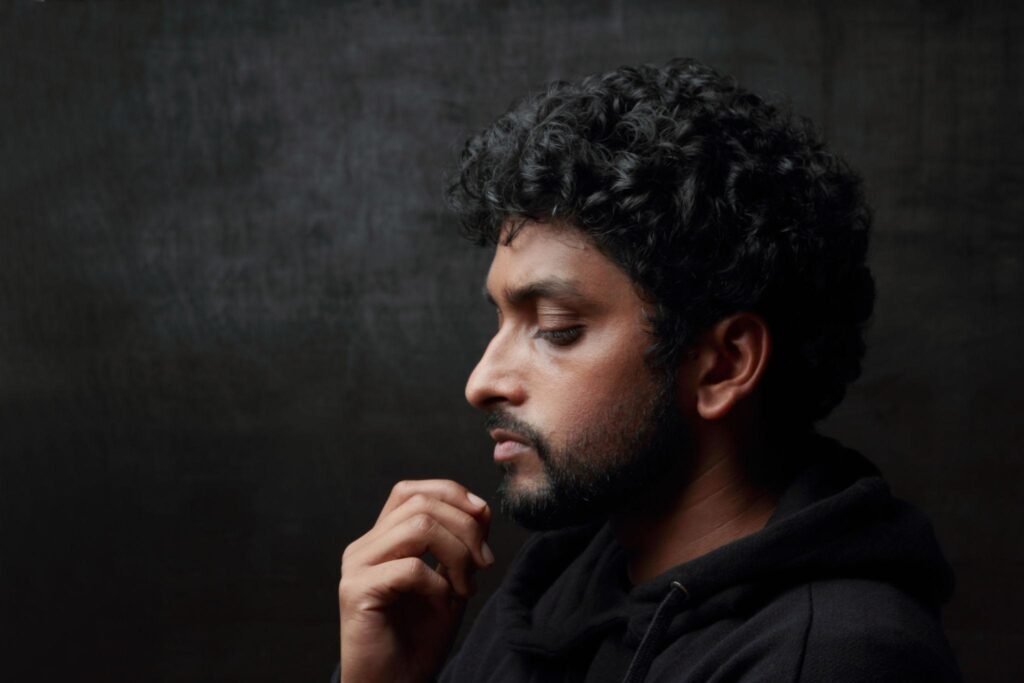
Have you ever captured a beautiful moment only to discover that your photograph looks too dark? This can happen when you take pictures indoors, during cloudy weather, in the evening, or in situations where the camera cannot capture enough light.
Fortunately, you can often improve underexposed photographs without taking them again.
Adobe Lightroom Mobile provides tools for adjusting exposure, recovering shadow detail, balancing highlights, and reducing visible noise. With the right editing approach, you can make dark photographs look brighter while maintaining realistic colors and natural textures.
In this guide, you will learn how to brighten dark photos in Lightroom, use practical starting settings, correct common problems, and improve low-light portraits on Android and iPhone.
Why Do Photos Look Too Dark?
A photograph can appear dark for several reasons.
One common cause is underexposure, which occurs when insufficient light is recorded for the desired appearance.
This may happen because of camera exposure settings, difficult lighting conditions, or the limited light available in the environment.
Other factors include:
- Photographing indoors without sufficient lighting.
- Taking portraits after sunset.
- Capturing subjects against bright windows.
- Using unsuitable exposure settings.
- Recording scenes with strong differences between highlights and shadows.
- Taking photographs in environments where the camera struggles to preserve shadow details.
Not every dark photograph is incorrectly exposed. Some images are intentionally dark to create a dramatic mood.
The aim of editing is to improve the photograph while preserving its intended atmosphere.
Can Lightroom Fix an Underexposed Photo?
Lightroom can often improve dark photographs by adjusting their brightness and tonal range.
However, the amount of recoverable detail depends on the original image.
A photograph that is slightly underexposed may respond very well to exposure and shadow adjustments.
An extremely dark photograph with missing image information may remain noisy or lack detail even after editing.
RAW photographs generally provide more flexibility for certain exposure adjustments than heavily compressed JPEG images, although results depend on the camera and capture conditions.
The most useful approach is to make gradual adjustments and review the image carefully.
What You Need Before Editing
Before starting this tutorial, prepare:
- Adobe Lightroom Mobile installed on your Android or iPhone.
- A dark photograph saved on your device.
- Enough storage space for your edits.
- A clear understanding of which areas need improvement.
For your first attempt, choose a photograph where the subject is visible but appears too dark.
This will help you understand how the editing sliders work.
How to Brighten Dark Photos in Lightroom Mobile
Follow these steps to improve the lighting of an underexposed image.
Step 1: Open Your Photo
Launch Lightroom Mobile.
Select an existing photograph or import a new image into the library.
Open the dark photograph in the editing view.
Examine the subject, background, and brightest areas before making adjustments.
Step 2: Open the Light Panel
Select Edit → Light.
The Light panel includes controls such as Exposure, Contrast, Highlights, Shadows, Whites, and Blacks.
These tools allow you to adjust different parts of the photograph’s tonal range.
You can read more about their functions in Adobe’s official Lightroom Light adjustments guide.
Step 3: Increase Exposure
Start by moving the Exposure slider slightly to the right.
Exposure controls the overall brightness of your photograph.
For a moderately dark image, try increasing exposure by approximately +0.30 to +0.70 as an initial experiment.
These are suggested starting values rather than settings that work for every photograph.
Watch the brightest areas while making changes.
If a window, sky, or light source becomes completely white, you may have increased exposure too much.
Step 4: Lift the Shadows
Next, increase the Shadows slider.
This brightens darker parts of the image without affecting the brightest areas in the same way as the Exposure adjustment.
Try a starting value between +20 and +45 for a moderately dark photograph.
Shadow adjustments can help reveal:
- Facial details.
- Dark clothing.
- Hair texture.
- Objects in shaded areas.
- Background elements hidden by darkness.
Be careful with extreme shadow adjustments because they can reveal noise and make the image appear flat.
Step 5: Reduce Excessive Highlights
After increasing exposure, some bright areas may become too intense.
Move the Highlights slider slightly to the left.
Try a starting value around -15 to -35 if necessary.
This can help balance areas such as bright skies, lamps, and window light.
Do not reduce Highlights automatically if the photograph does not contain problematic bright areas.
Step 6: Adjust Whites and Blacks
Whites and Blacks help refine the brightest and darkest tonal endpoints.
For an image that still looks dull, a small increase in Whites may restore brightness.
A slight decrease in Blacks may add contrast after raising the Shadows.
Make these adjustments carefully.
The goal is a balanced photograph rather than one where every part has the same brightness.
Step 7: Check the Overall Contrast
Raising Exposure and Shadows can sometimes reduce the apparent depth of an image.
Use the Contrast slider to restore some separation between light and dark areas.
A modest adjustment is often enough.
Avoid excessive contrast that hides the shadow details you just recovered.
Step 8: Correct White Balance
Brightening a photograph may reveal unwanted color casts.
For example, an indoor image may appear overly yellow, while a photograph captured in shade may look too blue.
Open the Color controls and adjust Temperature and Tint if necessary.
Pay particular attention to skin tones.
Step 9: Reduce Visible Noise
Dark photographs often contain noise, which can become more noticeable when you brighten shadows.
Open Edit → Detail and inspect the available noise reduction controls.
Increase noise reduction gradually while checking fine details.
Avoid excessive smoothing that removes natural skin or fabric texture.
For detailed information, see Adobe’s official Lightroom Detail controls.
Step 10: Compare and Export
Compare the edited photograph with the original.
Check that the image is brighter without appearing washed out or unnaturally processed.
When you are satisfied, export the final photograph using suitable settings for your intended use.
Lightroom Settings for Dark Photos: Quick Reference
The following values provide an example starting recipe for a moderately underexposed portrait.
| Setting | Suggested Value |
|---|---|
| Exposure | +0.50 |
| Contrast | +8 |
| Highlights | -25 |
| Shadows | +35 |
| Whites | +10 |
| Blacks | -8 |
| Vibrance | +5 |
| Saturation | 0 |
| Texture | 0 |
| Clarity | +3 |
These values are not a universal preset.
A photograph taken in very low light may need different settings, while a lightly underexposed image may require only small exposure changes.
Always prioritize the actual appearance of your photograph.
How to Brighten a Face Without Brightening the Entire Photo
Sometimes the background already looks correct, but the person’s face is too dark.
Increasing the overall Exposure may make the background excessively bright.
In this situation, selective editing can produce better results.
Step 1: Open Masking
Open your photograph in Lightroom Mobile.
Select the Masking tool, if available in your version and subscription.
Step 2: Select the Subject or Face Area
Use an available subject-selection or brush tool to select the area that needs correction.
Review the selection carefully.
Avoid selecting large unrelated background areas.
Step 3: Increase Exposure Slightly
Apply a modest Exposure increase to the selected region.
Start with a small change and observe the result.
Step 4: Adjust Shadows
If the face still lacks detail, increase Shadows within the selected region.
Maintain natural facial contrast.
Step 5: Review the Mask Edges
Check that the transition between adjusted and unadjusted areas is not obvious.
Adjust the selection if necessary.
Adobe explains the supported controls in its Lightroom local adjustment documentation.
How to Brighten Dark Portraits Naturally
Portraits need special attention because facial features and skin tones are important.
Preserve Skin Texture
Avoid excessive noise reduction, smoothing, or clarity adjustments.
Natural skin detail helps maintain a realistic appearance.
Keep the Eyes Visible
Subtle brightening around the face can help improve expression and eye detail.
Avoid creating unnaturally bright eyes.
Maintain Natural Shadows
A portrait does not need completely even lighting.
Soft shadows around the face can help create depth.
Check Skin Color
White balance changes can affect skin tones.
Compare the edited image with the original and correct unwanted yellow, green, or blue casts.
Avoid Overexposure
Do not make the face so bright that important facial details disappear.
The best edit usually balances brightness with realistic contrast.
How to Fix Dark Indoor Photos
Indoor photographs often contain a mixture of weak ambient lighting and artificial light.
This can create both exposure and color problems.
A practical approach is:
- Increase Exposure moderately.
- Raise Shadows if necessary.
- Reduce Highlights around bright bulbs or windows.
- Correct white balance.
- Apply gentle noise reduction.
- Review important details at higher zoom.
If the photograph contains several different light sources, one global white balance adjustment may not correct every color cast.
Use selective adjustments where supported, or accept a natural difference between lighting areas.
How to Fix Dark Outdoor Photos
Outdoor photographs may look underexposed when the background is much brighter than the subject.
For example, a person standing in front of a bright sky may appear dark.
Start by evaluating the subject and background separately.
If the sky is already correctly exposed, increasing overall Exposure may not be the best option.
Instead, consider lifting Shadows or selectively brightening the subject.
You may also need to reduce Highlights to maintain detail in the brighter parts of the image.
A balanced outdoor edit should keep the person visible without making the sky appear unnaturally flat.
How to Use Auto Settings in Lightroom
If you are unsure where to start, Lightroom Mobile includes an Auto feature.
Adobe’s documentation explains that Auto can adjust several controls based on the photograph, including Exposure, Contrast, Highlights, Shadows, Whites, Blacks, Saturation, and Vibrance.
To try it:
- Open the photograph.
- Select Edit → Auto.
- Review Lightroom’s adjustments.
- Open the Light panel.
- Fine-tune individual controls where necessary.
Automatic adjustments are a starting point rather than a guarantee of the ideal result.
For the official workflow, see Adobe’s guide to Auto settings in Lightroom Mobile.
How to Reduce Noise After Brightening Dark Photos
Noise is a common problem when working with low-light photographs.
It can appear as grain-like brightness variations or unwanted colored speckles.
When you brighten dark areas, these imperfections may become more visible.
Use Moderate Noise Reduction
Apply enough noise reduction to improve the image without removing fine details.
Review at High Zoom
Inspect areas such as skin, dark walls, and background shadows.
Avoid Excessive Sharpening
Sharpening can make visible noise more distracting.
Apply sharpening carefully after adjusting noise reduction.
Do Not Expect Missing Detail to Return
Editing cannot reliably recover fine image information that was never captured.
If a photograph is extremely dark or heavily blurred, it may not become sharp and clean through adjustments alone.
Should You Save Brightening Settings as a Preset?
You can save a collection of Lightroom adjustments as a custom preset.
However, exposure correction is highly dependent on the original photograph.
A preset that brightens one image correctly may overexpose another.
If your main goal is reusable editing, consider saving the color and tone adjustments while leaving Exposure available for individual correction.
For more information about Lightroom editing styles and preset workflows, visit our Presets category.
Common Lightroom Brightening Mistakes
Increasing Exposure Too Much
Excessive exposure can destroy bright-area detail.
Use small increments and review highlights.
Raising Shadows to the Maximum
Extreme shadow recovery can make an image look flat and reveal noise.
Adjust Shadows only as much as necessary.
Ignoring White Balance
Correct brightness with incorrect colors can still produce an unattractive photograph.
Overusing Noise Reduction
Too much smoothing can remove realistic texture.
Making Every Area Equally Bright
Natural photographs contain differences in light and shadow.
Preserve some contrast to maintain depth.
Using One Setting for Every Photo
Different photographs require different adjustments.
Treat suggested settings as experiments rather than fixed rules.
Lightroom Mobile vs. Regular Photo Filters
A basic photo filter usually applies a predefined visual treatment.
Lightroom provides individual controls for exposure, shadows, highlights, white balance, and other adjustments.
This makes it useful when you need to correct a specific problem instead of simply applying a new style.
For example, a dark portrait may need increased Shadows and selective facial brightening, while a bright landscape may require completely different settings.
Understanding the individual controls can help you make more deliberate editing decisions.
How to Compare Before and After in Lightroom
Before exporting, review the original and edited photographs.
In supported Lightroom Mobile versions, you can press and hold the image in the editing view to compare the before and after appearance.
Check the following:
- Is the subject easier to see?
- Are highlights still detailed?
- Does the image contain too much visible noise?
- Are skin colors realistic?
- Do shadows still look natural?
- Is the photograph sharp enough for its intended use?
If the edit looks unnatural, return to the Light panel and reduce the strongest adjustments.
Frequently Asked Questions
How do I brighten a dark photo in Lightroom Mobile?
Open the photo, go to Edit → Light, and increase Exposure or Shadows as needed. Review Highlights, Whites, and Blacks to maintain a balanced result.
What is the best exposure setting for dark photos?
There is no universal value. A modest increase such as +0.30 or +0.50 may be useful for some images, but the correct adjustment depends on the original exposure.
Can Lightroom recover details from very dark photographs?
Sometimes. Recovery depends on how much usable image information was captured. Extremely dark areas may contain noise or lack recoverable detail.
Should I increase Exposure or Shadows first?
Exposure changes overall brightness, while Shadows primarily affects darker tonal regions. Choose the adjustment based on which parts of the image need correction.
Why does my photo look grainy after brightening?
Brightening low-light photographs can reveal noise that was already present in the image.
Can I brighten only a face in Lightroom?
Yes, using supported selective masking tools. Available masking features may depend on your device and subscription.
Can I fix dark photos on Android?
Yes. Compatible versions of Lightroom Mobile for Android include Light and Detail adjustment tools.
Can I edit underexposed photos on an iPhone?
Yes. Lightroom Mobile for iPhone supports exposure and tonal adjustments on compatible devices.
Does Auto make dark photos perfect?
No. Auto provides suggested adjustments that may still require manual refinement.
Is RAW better than JPEG for fixing exposure?
RAW files generally preserve more editing flexibility for certain tonal corrections, although the actual result depends on the capture and camera processing.
Final Thoughts
Learning how to brighten dark photos in Lightroom Mobile is a practical skill for everyday photography.
By understanding Exposure, Shadows, Highlights, and noise reduction, you can improve underexposed images while preserving their natural appearance.
Start with small adjustments and review the photograph after every important change.
When necessary, use selective editing to brighten the subject without affecting the entire scene.
Remember that successful editing is not about making every photograph extremely bright. It is about creating a balanced image with clear details, believable colors, and natural contrast.
For more tutorials and photo editing resources, explore the Presets category on Daily Inspiration.