
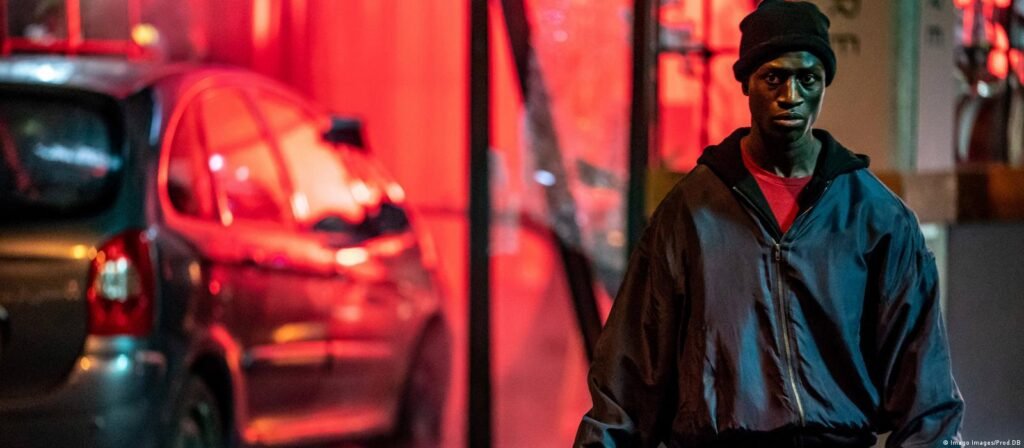
Cinematic photo editing is about creating the atmosphere of a movie scene through lighting, composition, color, and visual storytelling. A simple portrait can feel more dramatic when the light direction, shadows, and background work together naturally.
Today, compatible AI image editing tools allow creators to describe these adjustments in everyday language. Instead of manually building every effect, you can use a detailed prompt to communicate the look you want.
However, a cinematic photograph is not simply a dark image with strong color filters. Realistic results depend on believable lighting, consistent perspective, natural textures, and careful attention to the original subject.
In this guide, you will discover 15 cinematic AI photo editing prompts for portraits, night photography, outdoor scenes, and creative visual projects. Each prompt includes a suggested use and a practical tip to help you refine the result.
What Are Cinematic AI Photo Editing Prompts?
Cinematic AI photo editing prompts are written instructions that describe how an uploaded photograph should be modified to resemble a carefully photographed film scene.
They may specify elements such as directional lighting, background depth, contrast, color grading, atmosphere, and camera framing.
For example, a simple prompt might say:
“Make my portrait cinematic.”
A more useful version would say:
“Edit this portrait with realistic side lighting, softly detailed shadows, restrained blue and amber color grading, natural skin texture, and a softly blurred city background. Preserve the person’s recognizable appearance and clothing.”
The second example provides more useful visual direction while making clear which details should remain unchanged.
Different AI applications interpret instructions differently, so the same prompt may produce different results across tools or model versions.
How to Use Cinematic AI Editing Prompts
Before trying the prompts, choose a compatible AI image editor that supports editing uploaded photographs.
Follow this general process:
- Select a clear photograph that you own or have permission to edit.
- Upload it using the application’s supported image-editing workflow.
- Copy one of the cinematic prompts below.
- Adjust the description to match your subject and intended setting.
- Generate the edited image.
- Check the person’s face, body proportions, clothing, lighting, and background.
- Refine the prompt if the result needs improvement.
- Save the final photograph using the application’s available export options.
Important: If maintaining the subject’s original identity is essential, include a clear preservation instruction. However, written instructions alone cannot guarantee that every AI model will preserve a face perfectly.
1. Moody Cinematic Night Portrait Prompt
This style creates a dramatic nighttime atmosphere without making the photograph excessively dark.
Copy-paste prompt:
“Edit the uploaded photograph into a realistic cinematic night portrait. Preserve the subject’s recognizable facial features, hairstyle, expression, clothing, and body proportions. Introduce subtle city lighting in the background, soft directional light on the face, detailed shadows, and restrained cool-blue color grading. Keep natural skin texture visible and maintain realistic depth of field. Avoid excessive sharpening, artificial glow, and unnecessary facial changes.”
Best for: Night portraits, profile photographs, and urban editorial images.
Editing tip: Ask for visible detail in the shadows so the face does not disappear into the background.
2. Golden Hour Film Scene Prompt
Golden-hour lighting adds warmth and atmosphere when used carefully.
Copy-paste prompt:
“Transform the uploaded portrait into a realistic golden-hour film scene. Keep the subject’s facial identity, hairstyle, pose, and clothing consistent. Add warm sunlight from one side, subtle atmospheric haze, soft highlights, natural shadows, and a gently blurred outdoor background. Apply restrained warm color grading while maintaining believable skin tones and realistic camera detail.”
Best for: Outdoor portraits, lifestyle images, and travel photography.
Editing tip: Specify the sunlight direction to help the subject and background appear naturally connected.
3. Blue and Orange Cinematic Color Grading Prompt
Blue-and-orange grading is a visual style that contrasts cooler shadows with warmer highlights.
Copy-paste prompt:
“Apply subtle cinematic blue-and-orange color grading to the uploaded photograph. Preserve the original composition, subject, clothing, facial appearance, and natural proportions. Introduce gently cool shadows, restrained warm highlights, realistic midtone contrast, and balanced exposure. Maintain accurate skin tones and detailed textures. Avoid oversaturated teal colors, excessive orange skin, and unrealistic artificial lighting.”
Best for: Urban photography, action-inspired images, and cinematic portraits.
Editing tip: Keep the color treatment subtle rather than turning every shadow blue.
4. Rainy City Cinematic Portrait Prompt
A rainy environment can create reflections, atmosphere, and visual depth.
Copy-paste prompt:
“Edit this photograph into a realistic rainy city portrait at night. Preserve the person’s original facial appearance, hairstyle, clothing, and pose. Introduce believable wet pavement, soft reflections from streetlights, gentle rain in the background, and controlled cool-toned ambient lighting. Keep the subject naturally illuminated with consistent shadow direction. Maintain realistic textures and avoid distorted architecture or artificial reflections.”
Best for: Street portraits, dramatic social media images, and atmospheric storytelling.
Editing tip: Make sure reflected lights match the visible light sources.
5. Classic Film Portrait Prompt
A classic film-inspired look can create a timeless appearance through restrained colors and gentle grain.
Copy-paste prompt:
“Give the uploaded portrait a realistic classic-film aesthetic. Preserve the subject’s identity, expression, hairstyle, clothing, and original framing. Apply slightly softened contrast, balanced warm-neutral colors, subtle fine film grain, gentle highlight roll-off, and natural skin texture. Keep the image photographic and believable. Avoid heavy artificial scratches, exaggerated vintage overlays, and distorted facial details.”
Best for: Lifestyle photography, creative portraits, and nostalgic editorial images.
Editing tip: Subtle grain and controlled contrast are often more convincing than strong retro filters.
6. Dramatic Studio Spotlight Prompt
This prompt works well when you want a simple background with focused lighting.
Copy-paste prompt:
“Transform the uploaded photograph into a cinematic studio portrait with one soft directional spotlight illuminating the subject. Preserve the person’s original facial features, hairstyle, clothing, and proportions. Use a minimal dark-neutral background, gentle falloff into shadow, and detailed highlights on the face and clothing. Maintain realistic skin texture and natural shadow transitions. Do not add unnecessary accessories or alter the person’s identity.”
Best for: Professional portraits, fashion photography, and dramatic profiles.
Editing tip: Keep the spotlight soft enough to preserve important facial details.
7. Cinematic Forest Portrait Prompt
Natural environments can create a cinematic feeling through layered depth and soft sunlight.
Copy-paste prompt:
“Edit the uploaded portrait into a realistic cinematic forest photograph. Preserve the subject’s appearance, hairstyle, outfit, and pose. Add a natural woodland background with soft sunlight filtering through the trees, subtle atmospheric depth, restrained green color grading, and believable shadows. Keep the subject sharply focused with gentle background blur. Avoid artificial foliage, unrealistic sun rays, and excessive saturation.”
Best for: Nature portraits, outdoor fashion, and travel photographs.
Editing tip: Choose a natural-looking forest rather than requesting too many decorative elements.
8. Neon Street Cinematic Prompt
Neon-style lighting can create strong color contrast in nighttime portraits.
Copy-paste prompt:
“Create a realistic neon-lit street portrait from the uploaded photograph. Preserve the subject’s recognizable appearance, hairstyle, clothing, and natural body proportions. Introduce subtle blue and magenta light sources from nearby storefronts, believable reflections, soft night shadows, and realistic urban depth. Keep skin texture natural and prevent the colored lighting from overwhelming the face. Avoid excessive glow, distorted signage, and artificial-looking skin.”
Best for: Modern streetwear portraits and creative nighttime photography.
Editing tip: Limit the number of colored light sources to keep the scene believable.
9. Cinematic Desert Sunset Prompt
Desert landscapes can create an expansive atmosphere with warm tones and simple compositions.
Copy-paste prompt:
“Transform the uploaded photograph into a realistic cinematic desert sunset portrait. Preserve the subject’s original facial appearance, clothing, hairstyle, and pose. Introduce a believable desert landscape with warm low-angle sunlight, soft sand textures, subtle atmospheric haze, and natural shadows. Use balanced golden color grading and a realistic horizon line. Keep the subject properly grounded in the environment and avoid exaggerated orange saturation.”
Best for: Adventure portraits, travel-themed photographs, and creative editorial images.
Editing tip: Match the horizon and camera angle to the original photograph.
10. Black-and-White Film Noir Prompt
Film noir-inspired photography emphasizes shadow shapes, contrast, and atmosphere.
Copy-paste prompt:
“Convert the uploaded portrait into a realistic black-and-white film noir photograph. Preserve the original person’s face, hairstyle, clothing, expression, and proportions. Use directional side lighting, deep but detailed shadows, crisp tonal separation, and subtle film grain. Maintain realistic facial texture and natural photographic contrast. Avoid completely black facial areas, heavy artificial scratches, and unrealistic facial changes.”
Best for: Artistic portraits, monochrome editorials, and dramatic storytelling.
Editing tip: Preserve enough midtone detail to keep important facial features recognizable.
11. Cinematic Café Window Portrait Prompt
Window lighting can create soft, natural shadows that suit editorial portraits.
Copy-paste prompt:
“Edit the uploaded photograph into a realistic cinematic café portrait. Preserve the subject’s facial details, hairstyle, clothing, and natural pose. Place the subject near a large café window with soft daylight illuminating one side of the face. Use warm-neutral interior tones, subtle background blur, believable furniture, and restrained color grading. Keep the image natural and photographic. Avoid cluttered backgrounds and unrealistic reflections.”
Best for: Lifestyle blogging, indoor portraits, and personal photography.
Editing tip: Keep the background simple so the subject remains the focus.
12. Action Movie Street Portrait Prompt
An action-inspired portrait can use stronger contrast and dramatic framing while remaining realistic.
Copy-paste prompt:
“Give the uploaded photograph a realistic action-movie portrait aesthetic. Preserve the subject’s face, hairstyle, outfit, natural pose, and body proportions. Introduce dramatic but believable directional lighting, subtle urban atmosphere, controlled contrast, and a cinematic street background. Maintain sharp facial details and realistic shadows. Avoid adding weapons, exaggerated explosions, unnecessary objects, or unnatural facial modifications.”
Best for: Dynamic portraits, street photography, and cinematic personal branding.
Editing tip: A strong camera angle and realistic light usually create more impact than unnecessary visual effects.
13. Soft Romantic Movie Portrait Prompt
A softer cinematic style works well for portraits that need a gentle and expressive mood.
Copy-paste prompt:
“Edit the uploaded photograph into a soft romantic movie portrait while preserving the subject’s recognizable face, hairstyle, natural expression, clothing, and pose. Use gentle diffused daylight, warm-neutral colors, soft background depth, delicate highlights, and realistic skin texture. Maintain believable contrast and subtle photographic detail. Avoid excessive skin smoothing, artificial bokeh shapes, and distorted facial features.”
Best for: Couple photographs, lifestyle portraits, and soft editorial imagery.
Editing tip: Keep facial details sharp while allowing the background to appear gently out of focus.
14. Cinematic Mountain Adventure Prompt
Mountains can add a sense of scale and atmosphere to outdoor portrait photography.
Copy-paste prompt:
“Transform the uploaded photograph into a realistic cinematic mountain adventure portrait. Preserve the subject’s facial features, hairstyle, outfit, pose, and natural proportions. Introduce a believable mountain landscape with distant peaks, subtle atmospheric perspective, soft daylight, and realistic ground shadows. Apply balanced outdoor color grading with detailed highlights and natural textures. Avoid unrealistic mountain scale, mismatched lighting, or excessive clarity.”
Best for: Travel photography, adventure profiles, and outdoor lifestyle images.
Editing tip: Atmospheric perspective should make distant mountains appear softer than nearby objects.
15. Minimal Luxury Cinematic Portrait Prompt
This style combines clean composition with refined studio lighting.
Copy-paste prompt:
“Edit the uploaded photograph into a realistic minimal luxury cinematic portrait. Keep the subject’s facial identity, hairstyle, outfit design, colors, and body proportions consistent. Use a clean neutral studio environment with subtle directional lighting, refined shadows, soft background gradients, and natural fabric texture. Maintain balanced contrast and realistic photographic detail. Do not redesign the clothing, change the face, or introduce unnecessary accessories.”
Best for: Fashion portraits, professional branding, and minimal editorial photography.
Editing tip: Minimal styling works best when the subject and lighting remain the main visual elements.
How to Write Better Cinematic AI Prompts
If you want to create your own prompts, you can follow a simple structure.
Subject + Editing Goal + Lighting + Background + Color Grading + Preservation Instructions
For example:
“Edit this outdoor portrait with cinematic side lighting, a softly blurred city background, subtle cool shadows, natural skin texture, and realistic camera depth. Preserve the original person’s recognizable face and clothing.”
This structure helps the AI understand the most important parts of the requested edit.
Describe the Lighting Clearly
Instead of requesting “dramatic lighting,” explain whether the light should come from the side, front, back, or a specific object in the scene.
Keep the Background Consistent
Describe the environment without introducing too many unrelated objects.
Use Realistic Color Grading
Moderate contrast and carefully controlled saturation often create more believable results than extreme filters.
Explain What Must Remain Unchanged
If the person’s face, clothing, hairstyle, or pose is important, include preservation instructions.
Refine One Detail at a Time
If the first result is too dark, adjust the lighting request instead of rewriting the entire prompt.
Common Mistakes in Cinematic AI Photo Editing
Making Every Image Too Dark
Cinematic photography is not defined by extreme darkness. Preserve enough highlight and shadow detail to keep the subject clear.
Excessive Blue and Orange Colors
Strong color contrast can look unnatural when it overwhelms skin tones and the environment.
Incorrect Background Perspective
A subject photographed from one camera angle may look out of place in a background created from a different perspective.
Artificial Skin Texture
Over-smoothing can make a real portrait look like a digital illustration. Request natural pores and realistic facial detail.
Unwanted Facial Changes
Some AI editors may unintentionally alter facial features, even when prompted to preserve them.
Compare the edited image with the source and use reference or selective editing controls when available.
Unrealistic Shadows
Shadows should be consistent with the visible light sources and the position of the subject.
How to Improve AI Editing Results
A practical improvement process is to generate an initial image, inspect the result, and identify the most important problem.
If the face has changed, strengthen the identity-preservation instruction or use a tool with better reference controls.
If the lighting looks inconsistent, specify one dominant light source.
If the background feels artificial, simplify the environment and reduce unnecessary effects.
If colors look overly processed, request neutral skin tones and restrained color grading.
Always review the final image carefully before sharing or using it in a project.
Cinematic AI Editing vs. Lightroom Presets
Cinematic AI editing and Lightroom presets serve different purposes.
AI photo editing can modify backgrounds, introduce new lighting conditions, or reinterpret the atmosphere of a photograph, depending on the application’s capabilities.
Lightroom presets apply saved editing adjustments such as color, contrast, and tone to photographs.
For projects that only need consistent color grading, a preset may be sufficient.
If you want to learn more about creating reusable looks, read our guide to creating your own Lightroom presets on mobile.
You can also explore our Lightroom preset installation tutorial for basic setup instructions.
Responsible Use of AI Photo Editing
Use photographs you own or have permission to edit.
When working with another person’s image, consider their privacy and obtain appropriate consent, particularly for commercial or public-facing projects.
Avoid presenting substantially altered images as untouched documentary photographs when doing so could mislead viewers.
Also review the commercial-use conditions of your chosen editing tool before using generated visuals in paid projects.
Frequently Asked Questions
What is the best cinematic AI photo editing prompt?
The most effective prompt depends on the photograph and the result you want. Clear instructions about lighting, background, color grading, and subject preservation are useful starting points.
Can AI editing prompts preserve my original face?
You can request identity preservation, but the result depends on the editing model and available controls. No general prompt guarantees an identical face.
Do these prompts work on mobile?
Yes, if the chosen AI editing application supports modifying uploaded photographs on your mobile device.
Can I use cinematic prompts for Instagram photos?
Yes. You can adapt the prompts for profile photographs, portraits, and other social media images, subject to the editing platform’s terms.
Which lighting is best for cinematic portraits?
Soft directional lighting, golden-hour light, natural window light, and controlled night illumination can all produce cinematic results. The best choice depends on the original image.
Can I edit a photo without changing its background?
Yes. You can request changes only to exposure, color grading, contrast, or lighting while keeping the original background unchanged.
Why do AI-edited photographs sometimes look unrealistic?
Common causes include mismatched lighting, excessive smoothing, distorted details, inconsistent perspective, and overly strong color grading.
Can I combine AI editing with Lightroom presets?
Yes. Depending on the applications involved, you can use AI tools for certain modifications and then apply conventional editing adjustments for consistent color and tone.
Final Thoughts
Cinematic AI photo editing can help creators experiment with film-inspired lighting, dramatic portraits, atmospheric backgrounds, and distinctive color styles.
However, creating a realistic result requires thoughtful instructions rather than simply asking for a cinematic filter.
Use the 15 prompts above as starting points, adapt them to your own photographs, and refine the results carefully.
Focus on preserving important details, keeping lighting believable, and maintaining natural textures.
For more creative prompt ideas, explore the AI Prompts category on Daily Inspiration.
You can also discover more photography techniques and editing tutorials throughout Daily Inspiration.