
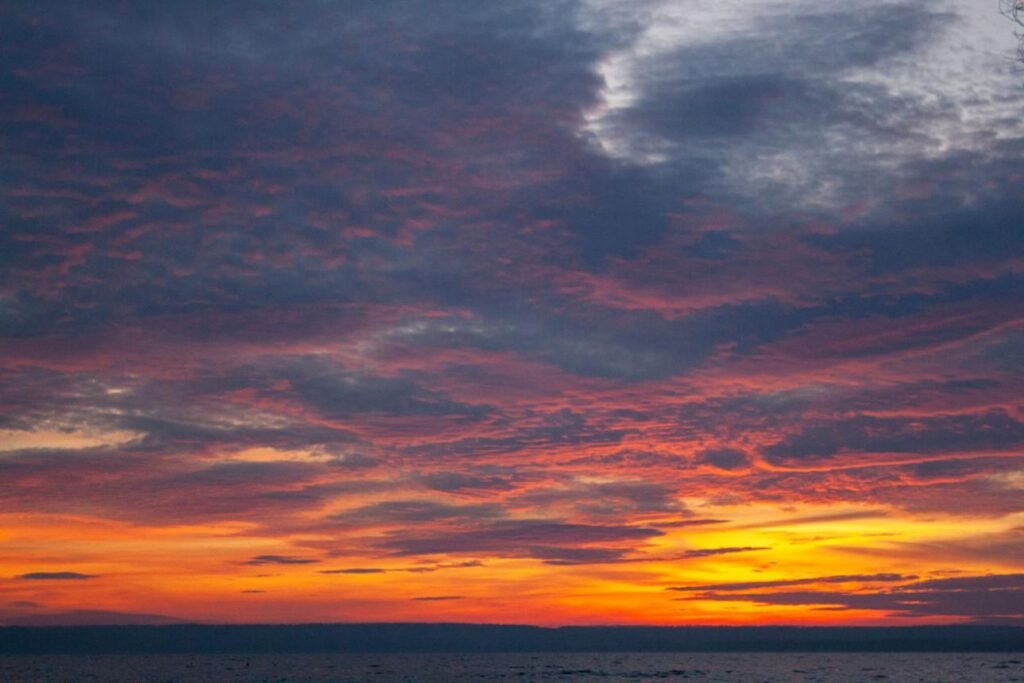
Sunset photography is one of the most beautiful ways to capture natural light. Golden skies, orange clouds, soft pink highlights, and deep purple tones can create incredible photographs.
However, the colors you see during a sunset do not always appear the same in your camera or smartphone photos. The sky may look too bright, the foreground may become too dark, or the warm colors may appear less vibrant than they did in real life.
Adobe Lightroom Mobile provides several editing tools that can help improve these photographs without making them look artificial.
In this guide, you will learn how to edit sunset photos in Lightroom on Android and iPhone using Exposure, Highlights, Shadows, Color Mix, Color Grading, and other practical adjustments.
You will also discover example Lightroom settings for different sunset styles, common editing mistakes, and how to save your favorite adjustments as a custom preset.
Why Do Sunset Photos Need Editing?
Sunset photographs often contain a large difference between the brightness of the sky and the ground.
For example, the sky may contain brilliant orange light while trees, buildings, or people in the foreground appear almost black.
This contrast can be difficult for a camera to capture in a single exposure.
Other common problems include:
- The sky appears too bright.
- Orange and pink colors look faded.
- Foreground details are difficult to see.
- The photograph has an unwanted blue or yellow cast.
- Clouds lack texture.
- The horizon appears too dark.
- Excessive camera processing makes the sunset look unnatural.
Careful editing can help balance these elements while preserving the atmosphere of the original scene.
What You Need Before Starting
To follow this tutorial, prepare:
- Adobe Lightroom Mobile installed on a compatible Android phone or iPhone.
- An original sunset photograph.
- Enough device storage for editing and exporting.
- A clear idea of whether you want a natural, warm, or dramatic sunset style.
If possible, choose a photograph that retains visible cloud and sky details.
Images with heavily overexposed white areas may contain details that cannot be recovered through editing.
RAW files may offer greater flexibility for some adjustments, but JPEG and other supported photographs can also be edited.
How to Edit Sunset Photos in Lightroom Mobile
The following process provides a practical starting workflow.
Step 1: Import Your Sunset Photograph
Open Lightroom Mobile.
Import a sunset photo from your phone or choose an image already in your library.
Before editing, inspect the photograph and identify the areas that need attention.
Ask yourself whether the problem is excessive brightness, weak colors, dark foreground detail, or a combination of these.
Step 2: Open the Light Panel
Select Edit → Light.
The Light panel contains controls for Exposure, Contrast, Highlights, Shadows, Whites, and Blacks.
These adjustments help shape the tonal balance of your photograph.
For an explanation of the available controls, read Adobe’s official Lightroom Light adjustment guide.
Step 3: Correct Exposure
Start by adjusting Exposure.
If the sky is too bright, reduce Exposure slightly.
If the entire photograph is too dark, consider raising Exposure.
Avoid making large changes immediately because sunset photographs often rely on a delicate balance of bright and dark areas.
Step 4: Reduce Highlights
Lower the Highlights slider to recover detail in bright clouds and sunset areas when that information is present in the original file.
A moderate reduction can help reveal cloud textures and create smoother transitions between colors.
Step 5: Adjust Shadows
Increase Shadows if you want to reveal details in buildings, trees, or landscape elements.
However, do not automatically brighten every silhouette.
Dark silhouettes are often an important part of sunset photography.
Step 6: Refine Whites and Blacks
Use Whites to adjust the brighter tonal range.
Use Blacks to refine the depth of the darkest areas.
A subtle decrease in Blacks can create a richer landscape, but excessive adjustments may hide important detail.
Step 7: Adjust White Balance
Open Edit → Color.
Use Temperature and Tint to correct the overall color balance.
A small increase in warmth can enhance golden-hour colors, but large adjustments may make the entire image excessively orange.
Step 8: Improve Individual Sunset Colors
Open Color → Mix.
Adjust the orange, yellow, red, blue, and purple color channels individually.
This provides more control than increasing overall Saturation.
Step 9: Apply Subtle Color Grading
Open Color → Grading.
Try adding gentle warmth to highlights and cooler tones to shadows.
Keep the saturation low for a natural result.
Step 10: Compare and Export
Review the edited image alongside the original.
Make sure the photograph remains realistic and important details are visible.
Export the photograph in a format suitable for your intended use.
Best Lightroom Sunset Settings: Quick Reference
The following settings are an example starting recipe for a moderately exposed sunset landscape.
Important: These values are not universal. Adjust them according to the lighting, camera, and colors in your original photograph.
Light Settings
| Setting | Starting Value |
|---|---|
| Exposure | -0.15 |
| Contrast | +12 |
| Highlights | -45 |
| Shadows | +20 |
| Whites | -12 |
| Blacks | -15 |
Color Settings
| Setting | Starting Value |
|---|---|
| Temperature | +5 relative to original |
| Tint | +3 relative to original |
| Vibrance | +18 |
| Saturation | +4 |
Effects Settings
| Setting | Starting Value |
|---|---|
| Texture | +5 |
| Clarity | +6 |
| Dehaze | +8 |
| Vignette | -8 |
These values can help create a more detailed and colorful sunset, but their effect depends on the source photograph.
For example, Dehaze may enhance cloud contrast in some images but make others too dark or saturated.
How to Enhance Orange Sunset Colors
Orange is one of the most important colors in many sunset photographs.
However, increasing orange saturation too much can make the sky look unnatural.
A more controlled method is to use Color Mix.
Step 1: Open Color Mix
Go to Edit → Color → Mix.
Select the Orange channel.
Step 2: Adjust Orange Saturation
Try increasing Orange Saturation slightly.
For example, begin around +10 and observe the change.
Step 3: Adjust Orange Luminance
If the orange clouds look too dark, increase Luminance slightly.
If the sky is already bright, leave the setting close to its original value.
Step 4: Review Other Colors
Look at nearby reds and yellows.
Sometimes, the orange effect changes because the photograph contains overlapping color ranges.
For a deeper explanation, see Adobe’s official guide to adjusting individual colors on mobile.
How to Create Purple and Pink Sunset Colors
Some sunset photographs naturally contain pink, violet, or purple tones.
You can enhance these colors carefully through Color Mix and Color Grading.
Purple Color Mix
If your photograph already contains purple sky colors, try:
- Purple Saturation: +10
- Purple Luminance: -5
- Purple Hue: 0 initially
Magenta Color Mix
For photographs with pink clouds, try:
- Magenta Saturation: +8
- Magenta Luminance: +5
These settings are starting points only.
Avoid introducing strong purple colors into a sunset that did not naturally contain them unless you are intentionally creating an artistic edit.
The strongest realistic results usually come from enhancing colors already present in the source.
How to Make Sunset Clouds More Dramatic
Cloud detail can give a sunset photograph more depth and visual interest.
Lightroom provides several tools for enhancing cloud contrast.
Reduce Highlights
This can reveal existing detail in brighter clouds.
Increase Texture Slightly
A small Texture adjustment can emphasize cloud detail.
Use Dehaze Carefully
Dehaze can add contrast to atmospheric scenes.
Start with a small value and inspect both the clouds and horizon.
Adjust Contrast
Moderate contrast can improve the separation between lighter and darker cloud formations.
Avoid Excessive Clarity
Very high Clarity settings can create unnatural halos around clouds or the horizon.
A dramatic sunset does not need extreme sharpening or contrast.
How to Brighten a Dark Foreground in Sunset Photos
Sunset photographs often contain dark buildings, people, mountains, or trees.
Whether you should brighten these areas depends on the composition.
When to Preserve Silhouettes
If the foreground contains a recognizable shape against the colorful sky, keeping it dark can create a stronger photograph.
When to Recover Detail
If a person, building, or important landscape feature should remain visible, increasing Shadows may help.
Using Selective Masks
In supported versions of Lightroom Mobile, masking tools allow you to adjust selected areas.
You can try selecting the foreground and increasing its Exposure or Shadows without changing the entire sky.
Review the mask carefully to prevent unnatural brightness around the horizon.
Three Sunset Editing Styles to Try
Different sunset photographs can benefit from different creative approaches.
Style 1: Natural Golden Sunset
This style focuses on realistic warmth and soft contrasts.
Try:
- Moderate highlight reduction.
- Slightly warmer white balance.
- Gentle orange saturation.
- Natural foreground shadows.
- Minimal vignette.
Best for: Travel photos, beaches, landscapes, and everyday sunset photography.
Style 2: Dramatic Orange and Purple Sunset
This style creates stronger color separation while preserving photographic realism.
Try:
- Moderate contrast.
- Reduced highlights.
- Slightly deeper blacks.
- Carefully enhanced orange and purple colors.
- Subtle Dehaze.
Best for: Cloud-filled skies, mountain sunsets, and colorful evening landscapes.
Style 3: Soft Pastel Sunset
Pastel sunsets rely on gentle colors rather than heavy contrast.
Try:
- Lower contrast.
- Soft highlights.
- Restrained saturation.
- Balanced pink and orange tones.
- Very limited Dehaze.
Best for: Calm seascapes, lifestyle photography, and peaceful evening scenes.
How to Use Color Grading for Sunset Photos
Color Grading allows you to apply different color tones to shadows, midtones, and highlights.
For a subtle warm sunset style, experiment with these starting values.
| Tonal Range | Hue | Saturation |
|---|---|---|
| Shadows | 220 | 6 |
| Midtones | 30 | 5 |
| Highlights | 40 | 10 |
Start with Blending around 50 and Balance around 0.
These settings create restrained cool shadows and warmer highlights.
If the image becomes too blue or orange, reduce the Saturation values.
The appropriate result depends on the original photograph.
For technical guidance, see Adobe’s official Lightroom Color controls.
How to Create a Sunset Lightroom Preset
Once you are satisfied with your edit, you can save the adjustments as a custom preset.
Step 1: Open the Presets Panel
While viewing your edited photograph, open the Presets section.
Step 2: Choose Create Preset
Locate the preset options and select Create Preset.
Step 3: Name Your Preset
Choose a clear name such as:
Natural Sunset Glow
Step 4: Select the Settings
Choose which adjustments to save.
Consider excluding Exposure if you want to use the preset across photographs with different brightness levels.
Step 5: Save the Preset
Save it to User Presets or a custom group.
Step 6: Test on Another Sunset Photograph
Apply it to a second photograph.
Adjust white balance, exposure, and individual colors as necessary.
For more editing resources and preset tutorials, explore the Presets category.
Common Sunset Editing Mistakes
Increasing Saturation Too Much
Excessive saturation can make orange skies look artificial and remove subtle color transitions.
Fix: Reduce global Saturation and use Color Mix for more targeted adjustments.
Turning Every Sunset Purple
Not every sunset contains purple or pink tones.
Fix: Enhance existing colors rather than automatically introducing new ones.
Making the Foreground Too Bright
Brightening every shadow can remove the natural silhouette effect.
Fix: Decide which foreground details actually need to remain visible.
Excessive Dehaze
Strong Dehaze can create unnatural cloud edges, dark horizons, and excessive saturation.
Fix: Use moderate adjustments and compare with the original.
Losing Highlight Detail
Increasing Exposure or Whites too much can make the brightest clouds appear featureless.
Fix: Review Highlights and Exposure carefully.
Incorrect White Balance
Overly warm settings can make neutral objects and foreground subjects appear orange.
Fix: Make smaller Temperature adjustments and inspect the whole photograph.
Over-Sharpening Clouds
Aggressive sharpening can introduce halos around high-contrast areas.
Fix: Use subtle Texture and Clarity values.
How to Keep Sunset Photos Looking Natural
Natural-looking sunset editing begins with understanding what is already present in the photograph.
You do not always need to add more color.
Sometimes, reducing overly bright highlights reveals enough detail to make the sunset more attractive.
Other times, a small white balance adjustment may be sufficient.
A useful editing process is:
- Correct the overall exposure.
- Preserve highlight detail.
- Decide whether the foreground should be visible or silhouetted.
- Refine white balance.
- Enhance individual colors carefully.
- Add subtle finishing effects.
- Compare the final photograph with the original.
This approach can produce a balanced result without relying on extreme filters.
Best Export Settings for Sunset Photography
After editing, choose export settings appropriate for your intended use.
For Social Media
Use suitable image dimensions and quality to keep the sky looking clear.
Avoid repeated compression when possible.
For Website Articles
A landscape-oriented photograph around 1200 × 675 pixels may work well as a featured image, although the appropriate size depends on the website design.
For High-Quality Storage
Keep a high-resolution copy of your original photograph.
Export the edited image at a suitable quality level for your intended output.
JPEG vs. PNG
JPEG is commonly practical for photographic images.
PNG may be suitable for certain design workflows but can produce larger files.
The best format depends on your requirements.
Lightroom Presets vs. Manual Sunset Editing
Presets can speed up editing by applying saved adjustments.
However, different sunsets have different colors, lighting conditions, and foreground details.
A preset that works beautifully on one photograph may look too orange or too dark on another.
Manual editing gives you more control over Exposure, Color Mix, and other settings.
A practical approach is to use a preset as a starting point, then make individual corrections.
If you are interested in other styles, browse the Presets category for related editing tutorials.
Frequently Asked Questions
How do I edit sunset photos in Lightroom Mobile?
Open the photograph, adjust Exposure and Highlights, refine Shadows, correct white balance, and use Color Mix to enhance sunset colors carefully.
What are the best Lightroom settings for sunset photos?
There is no universal combination. A moderate highlight reduction, suitable contrast, restrained Vibrance, and targeted Orange Color Mix adjustments are useful starting points.
How can I make orange sunsets more vibrant?
Use Color Mix to increase Orange Saturation slightly and adjust Luminance where necessary.
How do I make purple sunset colors stand out?
Adjust Purple and Magenta channels when those colors are already present in the original photograph.
Should I increase saturation in sunset pictures?
A small increase may help, but too much saturation can make the sky look unrealistic.
Can Lightroom recover an overexposed sunset sky?
Sometimes. Recovery depends on how much highlight information was recorded in the original photograph.
Should I brighten silhouettes in sunset photos?
Not always. Silhouettes can be an important creative element and may look stronger when left dark.
Can I save my sunset settings as a preset?
Yes. Compatible Lightroom Mobile versions allow users to create custom presets.
Does this tutorial work on Android?
Yes. Supported Android versions of Lightroom Mobile include the main Light and Color editing controls described here.
Can I edit sunset photographs on an iPhone?
Yes. Compatible Lightroom Mobile versions for iPhone provide similar editing tools.
Final Thoughts
Learning how to edit sunset photos in Lightroom Mobile can help you bring out the natural beauty of golden skies, colorful clouds, and evening landscapes.
The most important editing tools are often the simplest ones.
Exposure, Highlights, Shadows, white balance, Color Mix, and subtle Color Grading can make a meaningful difference without changing the photograph beyond recognition.
Start with the practical settings in this guide, adapt them to your original photograph, and avoid excessive saturation or contrast.
Once you develop a sunset style you enjoy, save the adjustments as a custom preset for future editing.
For more photo editing tutorials, creative techniques, and preset ideas, explore the Presets category on Daily Inspiration.
You can also browse the Backgrounds category for more nature and photography inspiration.