
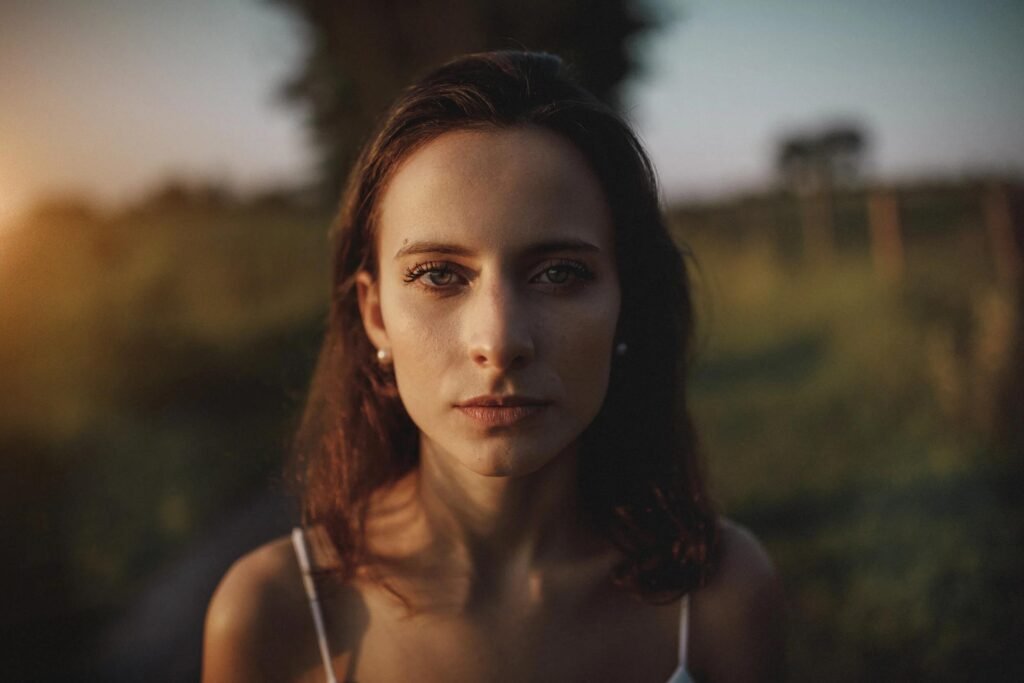
Want to give your photos a dramatic, film-inspired appearance without making them look overly dark or artificial? A moody cinematic Lightroom preset can help you create deeper colors, softer highlights, atmospheric shadows, and a more consistent editing style.
The best part is that you do not need to purchase a preset pack to experiment with this look. You can create your own editing recipe using Adobe Lightroom Mobile and save the adjustments as a reusable custom preset.
In this guide, you will learn how to create Moody Cinematic Lightroom Preset using practical starting settings for the Light, Color, Color Mix, Color Grading, and Effects panels.
You will also discover how to adapt those settings to portraits, street photography, and outdoor images.
What Is a Moody Cinematic Lightroom Preset?
A moody cinematic Lightroom preset is a collection of editing adjustments designed to create a dramatic photographic atmosphere.
This style often features:
- Deep shadows with visible detail.
- Controlled highlights rather than excessively bright areas.
- Muted greens and blues.
- Warm skin tones or subtle warm highlights.
- Balanced contrast with a film-inspired appearance.
- Natural image texture and restrained sharpening.
Unlike a basic dark filter, a well-designed cinematic preset maintains important details in both bright and dark areas.
The goal is to create an intentional visual mood rather than simply lowering the brightness.
Which Photos Work Best With Moody Cinematic Presets?
This editing style can work with many different photographs, but certain types of images are particularly suitable.
Outdoor Portraits
Portraits photographed in soft sunlight, cloudy weather, or shaded environments often respond well to cinematic color grading.
Urban Street Photography
City streets, buildings, cars, and nighttime environments can benefit from controlled contrast and muted background colors.
Travel Photography
Mountains, forests, architecture, and landscapes can develop a more atmospheric look through subtle shadow and color adjustments.
Fashion Photography
Cinematic grading can add depth to fashion portraits while maintaining realistic fabric textures and natural skin tones.
Photographs captured in harsh midday sunlight or extremely low light may require more corrective adjustments before the preset produces a balanced result.
Before You Start Editing
To follow this tutorial, you need:
- Adobe Lightroom Mobile installed on your phone.
- A photograph saved in your Lightroom library.
- Access to the relevant editing controls.
- A few minutes to experiment with the suggested settings.
- Enough available device storage to save your edited photographs.
Open a photograph that already has a reasonably clear subject and usable shadow detail.
For your first attempt, an outdoor portrait with soft daylight is a good choice.
Moody Cinematic Lightroom Settings: Quick Reference
The following values are suggested starting points, not universal settings. Exposure, white balance, and individual colors may need adjustment for your photograph.
Light Settings
| Setting | Starting Value |
|---|---|
| Exposure | 0.00 |
| Contrast | +18 |
| Highlights | -40 |
| Shadows | +12 |
| Whites | -22 |
| Blacks | -24 |
Basic Color Settings
| Setting | Starting Value |
|---|---|
| Temperature | Keep near original |
| Tint | Keep near original |
| Vibrance | -10 |
| Saturation | -6 |
Effects Settings
| Setting | Starting Value |
|---|---|
| Texture | +5 |
| Clarity | +8 |
| Dehaze | +4 |
| Vignette | -12 |
| Grain | 12 |
These settings create a foundation for a moody image while allowing enough flexibility to preserve natural-looking details.
The following sections explain how to use and refine them.
Step 1: Adjust the Light Settings
Open your photograph in Lightroom Mobile and select the Light panel.
This is where you control the overall brightness and tonal balance of the image.
Exposure: 0.00
Begin by keeping exposure close to its original value.
Do not automatically make the entire photograph darker.
If your image is already underexposed, increase exposure slightly before applying the remaining adjustments.
Contrast: +18
Increasing contrast helps separate bright and dark areas.
A moderate contrast increase can make the photograph feel stronger and more cinematic.
Avoid going too far because excessive contrast may hide important shadow details.
Highlights: -40
Reducing highlights can recover detail in bright areas such as the sky, windows, or reflective surfaces.
This adjustment helps produce a more controlled, film-inspired appearance.
Shadows: +12
Slightly raising the shadows allows you to retain details in darker parts of the photograph.
This is important because a moody look does not require completely black shadows.
Whites: -22
Reducing whites helps prevent bright areas from dominating the composition.
The effect is particularly useful for photographs with bright clothing, walls, or skies.
Blacks: -24
Lowering blacks creates deeper dark tones.
Use this adjustment carefully. If hair, clothing, or background objects lose too much detail, move the Blacks slider closer to zero.
Step 2: Adjust the Basic Color Settings
After editing the light, open the Color panel.
The goal here is to reduce distracting colors without making the image lifeless.
Temperature: Adjust for Your Photo
There is no single temperature setting that works for every image.
A photograph taken in warm sunlight may need a slight cooling adjustment, while a portrait captured in shade may already contain too much blue.
Start near the original white balance and make small changes based on the appearance of the subject.
Tint: Adjust Only When Needed
Use Tint to correct unwanted green or magenta color casts.
For portraits, check the skin tones before deciding whether an adjustment is necessary.
Vibrance: -10
Reducing vibrance slightly can soften less dominant colors.
This helps create a restrained cinematic palette.
Saturation: -6
A small decrease in saturation reduces the overall intensity of colors.
Avoid reducing saturation too much, especially when editing portraits.
Step 3: Create Cinematic Colors With Color Mix
One of the most useful techniques for moody photo editing is adjusting individual color channels.
In Lightroom Mobile, open Color → Mix.
You can then modify Hue, Saturation, and Luminance for individual colors.
Suggested Color Mix Settings
| Color | Hue | Saturation | Luminance |
|---|---|---|---|
| Red | 0 | -5 | 0 |
| Orange | -3 | +2 | +5 |
| Yellow | -20 | -25 | -8 |
| Green | +20 | -30 | -18 |
| Aqua | -10 | -15 | -5 |
| Blue | -10 | -18 | -12 |
Leave Purple and Magenta near their default values initially, unless those colors are important in your photograph.
Why Reduce Green Saturation?
Bright green foliage can sometimes distract from the main subject.
Reducing green saturation and luminance slightly can give outdoor photographs a deeper, more atmospheric appearance.
However, do not make every leaf look grey or unnaturally dark.
Why Adjust Orange Carefully?
Orange tones often influence skin appearance.
A small luminance increase can help preserve facial brightness while the surrounding scene becomes moodier.
If skin tones look unnatural, reduce the orange adjustments.
Why Darken Blue Slightly?
Lowering blue luminance can make blue skies and certain background elements appear deeper.
This works well in some outdoor photographs but may not suit every image.
Step 4: Add Cinematic Color Grading
Color Grading helps you apply different color tones to shadows, midtones, and highlights.
Open Color → Grading in Lightroom Mobile.
For a subtle cinematic look, try the following starting values.
Shadows
- Hue: 205
- Saturation: 8
- Luminance: 0
This adds a restrained cool-blue influence to darker areas.
Midtones
- Hue: 35
- Saturation: 4
- Luminance: 0
A very small warm influence helps prevent the image from becoming excessively cool.
Highlights
- Hue: 42
- Saturation: 9
- Luminance: 0
This adds gentle warmth to the brightest areas.
Blending and Balance
Start with:
- Blending: 50
- Balance: 0
Adjust these controls after reviewing the entire photograph.
Important: Color Grading is most effective when the effect is subtle. Strong saturation in every tonal range can make the photograph look unnatural.
Step 5: Adjust the Effects Panel
The Effects panel can enhance photographic texture and visual atmosphere.
Use the following starting values:
Texture: +5
A small texture increase can preserve detail in clothing, architecture, and other surfaces.
For close-up portraits, consider reducing Texture if skin becomes overly harsh.
Clarity: +8
Clarity increases local contrast and can create a slightly stronger visual appearance.
Use moderate values to avoid unnatural halos.
Dehaze: +4
A small Dehaze adjustment may help improve separation and contrast in hazy scenes.
Be careful because excessive Dehaze can make the image unnaturally dark or saturated.
Vignette: -12
A subtle vignette darkens the edges of the image.
This can help direct attention toward the main subject.
Avoid a heavy vignette that creates an obvious dark circle.
Grain: 12
A light amount of grain can add an organic, film-inspired texture.
Inspect the image at normal viewing size before increasing the effect further.
Grain may be less useful for photographs that already contain significant digital noise.
Step 6: Use the Tone Curve for a Film-Inspired Look
The Tone Curve provides another way to refine contrast and shadow appearance.
For a subtle cinematic effect:
- Open the Curve controls inside the Light panel.
- Select the overall tonal curve.
- Create a gentle S-shaped curve.
- Slightly lower the darker midtones.
- Slightly raise the brighter midtones.
- If you want a faded-film look, raise the black point only a small amount.
Avoid creating sharp bends in the curve.
A smooth curve generally produces more natural tonal transitions.
If you already have strong contrast from the basic Light settings, keep the curve adjustments very subtle.
Step 7: Save Your Moody Cinematic Lightroom Preset
Once you are happy with the results, save your adjustments so you can reuse them.
Follow these steps:
- Open the edited photograph in Lightroom Mobile.
- Select the Presets panel.
- Open the preset options menu.
- Choose Create Preset.
- Enter a descriptive preset name.
- Select the settings you want to include.
- Save the preset in an appropriate group.
You could name your preset:
Moody Cinematic — Natural Film
When saving, consider excluding exposure and white balance if you want the preset to work across photographs captured under different lighting conditions.
For a complete walkthrough, read our guide to creating Lightroom presets on mobile.
How to Apply Your Cinematic Preset to Another Photo
Open a new photograph and navigate to your saved preset.
Apply the preset, then review the image carefully.
Pay attention to:
- Overall brightness
- Natural skin color
- Shadow detail
- Highlight detail
- Green and blue color intensity
- Background contrast
If the photograph is too dark, adjust Exposure and Blacks rather than immediately discarding the preset.
If skin tones look too warm or cool, review white balance and orange Color Mix adjustments.
A useful preset should speed up editing while still allowing you to make necessary corrections.
Three Variations of the Moody Cinematic Look
You can adapt the base settings to different photography styles.
Variation 1: Dark Urban Cinematic
For urban street photographs:
- Increase Contrast slightly.
- Reduce blue and green saturation.
- Keep shadows detailed.
- Add a subtle vignette.
- Avoid excessive grain.
This variation works well for architecture, streets, and outdoor portraits.
Variation 2: Warm Cinematic Portrait
For daylight portraits:
- Keep skin tones warm and realistic.
- Reduce green saturation in the background.
- Preserve facial highlights.
- Use gentler contrast.
- Avoid excessive clarity on the face.
This variation is useful when you want the background to feel dramatic without making the person look unnatural.
Variation 3: Soft Moody Travel
For landscapes and travel photographs:
- Lower highlight intensity.
- Maintain detail in distant objects.
- Use moderate contrast.
- Reduce excessive saturation.
- Keep the sky and natural scenery believable.
This style can make travel images feel atmospheric without losing important environmental detail.
How to Fix Common Moody Lightroom Editing Problems
My Photo Looks Too Dark
Increase Exposure slightly and review the Blacks setting.
Do not raise every slider at once.
Start with the most important problem and make small adjustments.
Skin Tones Look Orange
Reduce the warm color grading effect and inspect the orange channel in Color Mix.
Also review white balance.
The Background Looks Too Green
Reduce green saturation carefully.
If the background becomes grey or lifeless, restore some saturation and luminance.
The Image Looks Too Sharp
Reduce Clarity, Texture, or sharpening.
Strong local contrast may make faces and clothing look unnatural.
My Preset Looks Different on Every Photo
This is normal.
Different photographs contain different lighting conditions, colors, and tonal ranges.
Use your saved preset as a starting point rather than expecting identical results.
Shadows Have Lost Too Much Detail
Move the Blacks slider closer to zero or raise Shadows slightly.
A cinematic image should still preserve important subject details.
Before and After: How to Evaluate Your Edit
After finishing your edit, compare it with the original photograph using Lightroom’s before-and-after preview functionality, where available.
Look for improvements in overall composition, color balance, and subject separation.
A successful edit should feel intentional while keeping important details recognizable.
Ask yourself:
- Is the subject clearly visible?
- Are skin tones natural?
- Are shadows detailed enough?
- Do the colors work together?
- Does the photograph look realistic at normal viewing size?
If the edit looks excessively dark or unnatural, reduce the strength of the adjustments.
Practical content tip: When publishing your own Lightroom tutorial, include original before-and-after screenshots from the same photograph. This helps readers understand the actual effect of the settings.
Moody Lightroom Presets vs. AI Photo Editing
Lightroom presets and AI photo editing prompts can both help create cinematic images, but they approach editing differently.
Lightroom presets apply saved photo adjustments such as contrast, color, tone, and effects.
AI photo editing tools may interpret written instructions to change lighting, backgrounds, atmosphere, or other image features, depending on the tool.
For readers interested in using written instructions to create similar styles, our cinematic AI photo editing prompts guide provides another approach.
You can also learn how to work with downloaded preset files in our Lightroom preset installation guide.
Frequently Asked Questions
Are moody cinematic Lightroom presets free?
You can create your own cinematic preset using supported Lightroom editing features. Some third-party preset packs are available for free, while others require payment.
Can I create a cinematic preset on Android?
Yes. Supported versions of Lightroom Mobile for Android include controls for Light, Color, Color Mix, and Color Grading.
Can I use these settings on an iPhone?
Yes. Compatible versions of Lightroom Mobile for iPhone provide similar editing tools, although the interface may differ.
Do these Lightroom settings work on every photograph?
No. They are suggested starting values. Lighting, camera processing, subject colors, and file format can affect the final result.
Should I use a high Clarity setting?
Not always. Excessive Clarity may create harsh textures and unnatural-looking portraits.
How do I make a moody photo without making it too dark?
Control highlights and contrast while maintaining adequate exposure and preserving important shadow detail.
Can I save the settings as my own preset?
Yes. Lightroom Mobile supports creating custom presets from compatible editing adjustments.
Is a cinematic preset the same as a LUT?
No. A Lightroom preset can save a range of editing adjustments, while a LUT generally represents a color transformation. They are related creative tools but are not interchangeable in every workflow.
Final Thoughts
Creating moody cinematic Lightroom presets is a practical way to develop a recognizable photo editing style.
By combining controlled contrast, muted colors, subtle cool shadows, warm highlights, and natural texture, you can achieve a film-inspired look without relying on extreme effects.
Start with the suggested values in this guide, then customize them to match your photograph.
Once you are satisfied, save the result as a preset and test it on several different images.
The most useful cinematic preset is not necessarily the darkest or most dramatic one. It is the preset that helps you create an attractive and consistent look while preserving important photographic details.
For more practical editing tutorials, visit the Presets category on Daily Inspiration.